
Incrementality Testing Use Case

To import and analyze a Meta Conversion Lift study in Sellforte, open Experiments and first check whether the study is already in your library. If it is missing, use New analysis → Conversion Lift to upload the Meta export. Open the completed result to review incremental sales, test iROAS and uncertainty.
This guide follows the setup screen and a completed Meta Prospecting study in the public Sellforte demo. All figures and screenshots use simulated data. File uploads are disabled in the demo, so the completed study shown below is an existing example, separate from the form walkthrough.
Before you start: You need access to Experiments and either an imported Meta study or its original lift-study export. For manual upload, confirm the market, outcome and dates.
What you will produce: A study saved in your test library, with a checked interpretation of its incremental sales and return.
1. Check whether the study is already in your library
Select Experiments in the left navigation. Search for the study name and check its country, dates and status. If the result is already available, open that record and continue to step 4. This keeps one clear record of the evidence.
When the native Meta connection and automatic study import have been enabled, Sellforte retrieves Meta Conversion Lift studies for you. Contact your Customer Success Manager to enable this route. Manual upload is available when you need to bring in a study yourself. The Conversion Lift support guide explains both options.
The experiment itself runs in Meta. Sellforte brings its results into the experiment library and presents them alongside your other testing evidence. Creating this analysis does not launch a new holdout study in Meta Ads Manager.
2. Open a Conversion Lift analysis and define its scope
Choose New analysis, then select the Conversion Lift tab. The form asks for the analysis name, country, target KPI, visibility, advertising platform, KPI data and study dates.
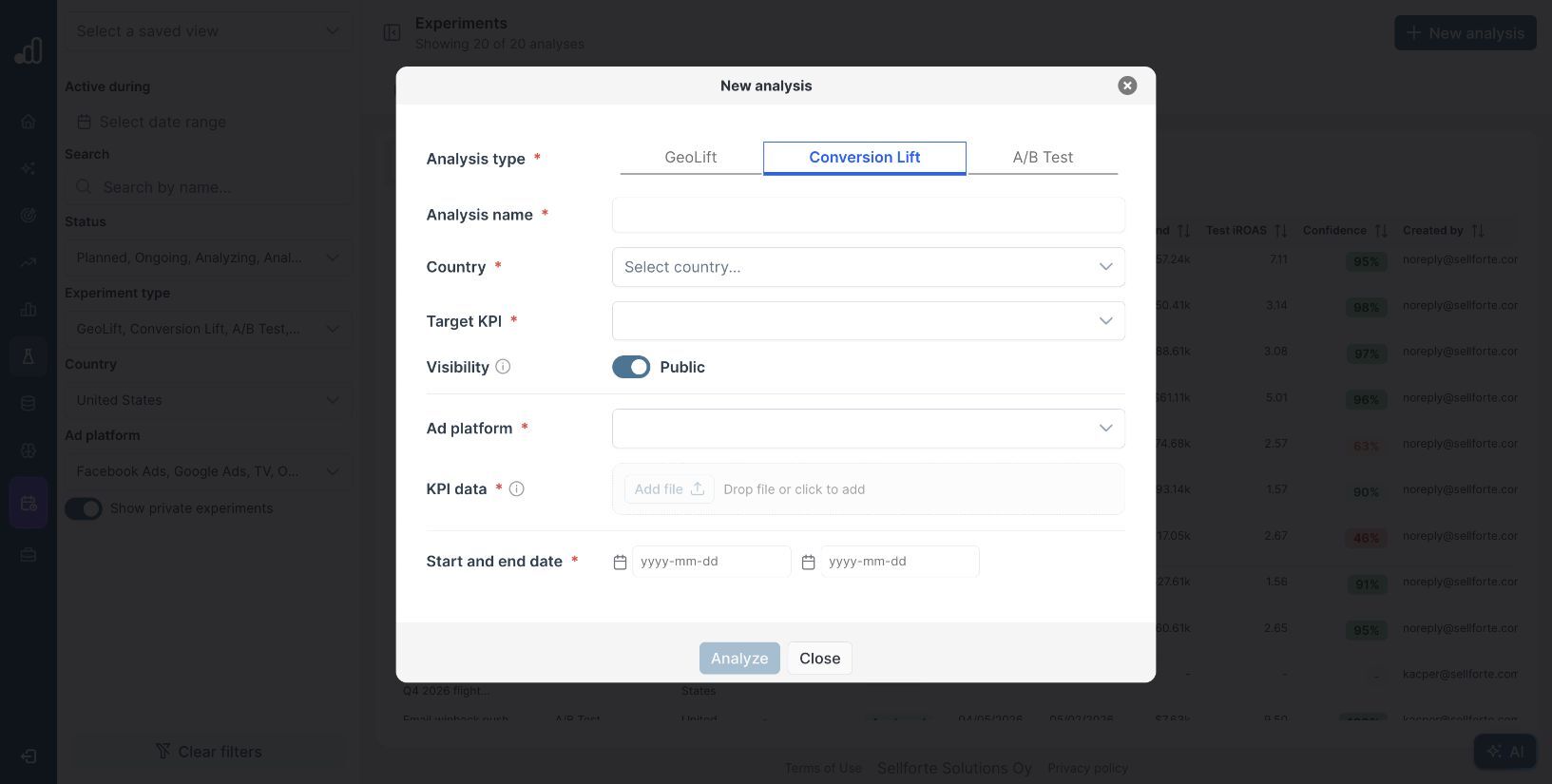
For the setup example, enter Meta Prospecting — Conversion Lift, Jul 2026 as the name and select United States. Choose the KPI that corresponds to the study outcome. The demo calls its available KPI turnover; use the appropriate configured label in your workspace.
Review Visibility before submitting. Choose the intended sharing setting for your analysis. In Ad platform, select Facebook Ads, the label used for Meta in this form. That selection reveals optional Account ID, Campaign ID and Ad set ID fields. Use identifiers from the source study when they are needed to map its scope.
Keep the scope consistent across the export and these fields. A study covering a whole campaign should not be described as evidence for one ad set unless the source study supports that interpretation.
3. Upload the Meta export and check the dates
In your Sellforte workspace, use Add file under KPI data to select the conversion lift export. The field accepts XLS and XLSX files. Use the study export from Meta, with the study metadata and reported lift results; an ordinary campaign performance spreadsheet is not the same input.
Enter the study’s treatment dates in Start and end date. The example uses 2026-07-05 and 2026-08-01. These are the dates the experiment ran, not the day you downloaded or uploaded its results.
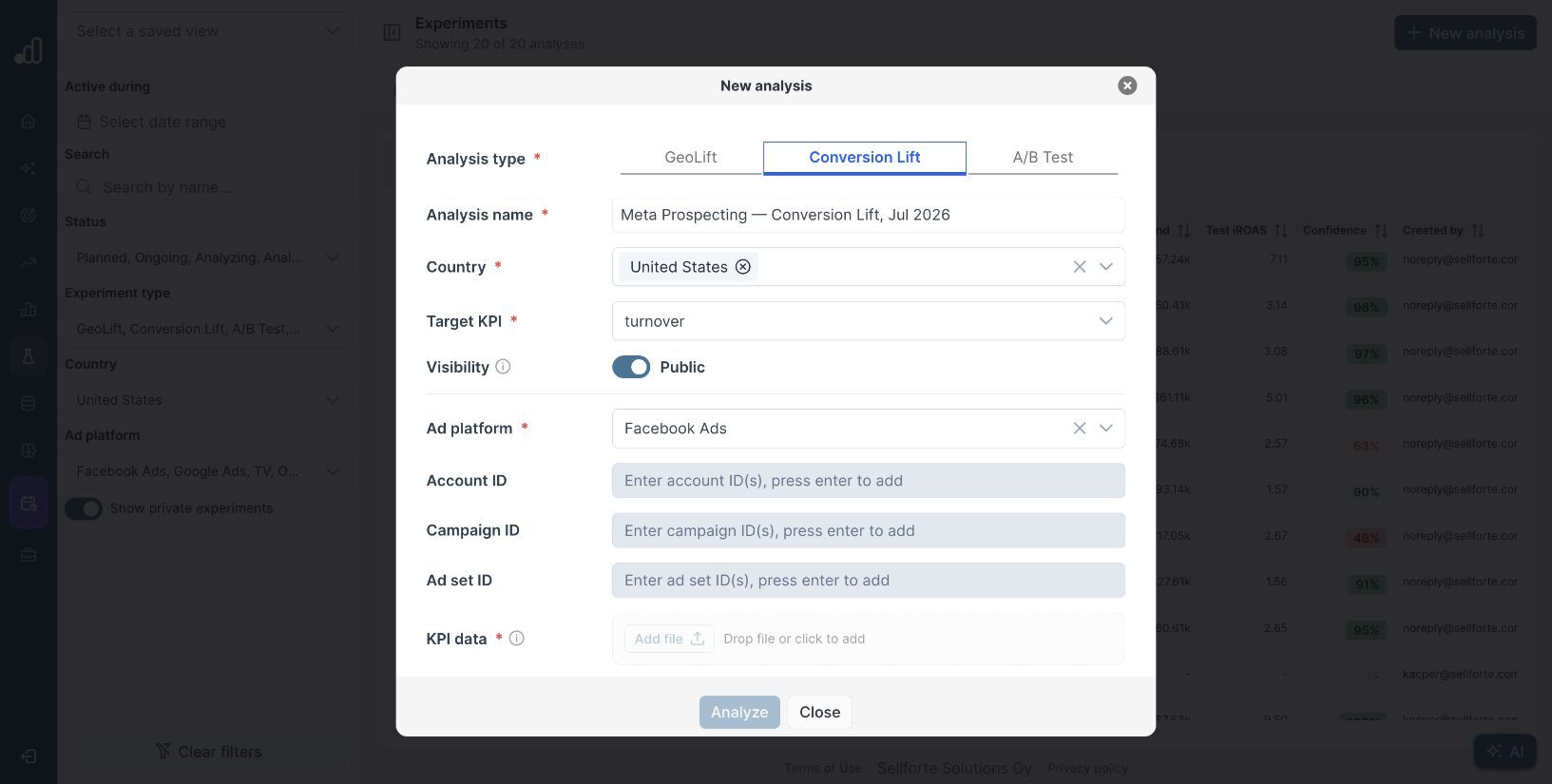
Check the name, market, outcome, platform, file and dates together, then select Analyze when the form is ready. If the file is rejected, check that you selected the original lift-study export in a supported format. Ask your Sellforte team to help resolve a format or mapping problem before substituting another report.
In the public demo, Add file and Analyze are disabled for Conversion Lift. You can inspect the form and explore completed examples, but you cannot upload your own study there.
4. Read the completed study with its uncertainty
Open Meta Prospecting — Conversion Lift repeat, Jul 2026 — Purchase - Web. Confirm Conversion Lift, Analyzed, United States and the July 5 to August 1 dates in the header.
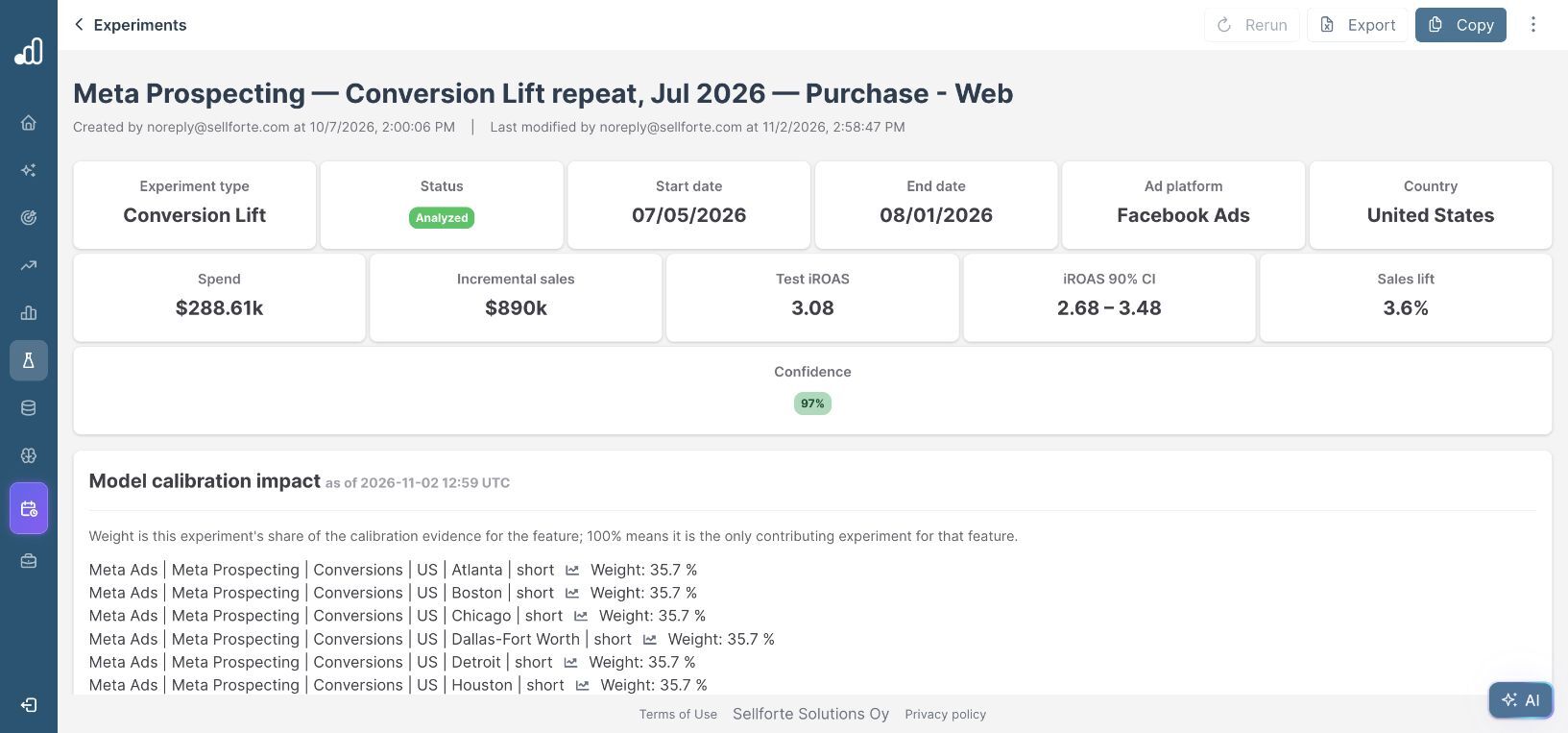
| Result card | Demo value | How to use it |
|---|---|---|
| Spend | $288.61k | The media investment associated with this study. |
| Incremental sales | $890k | The estimated additional revenue reported for the tested activity. |
| Test iROAS | 3.08 | About $3.08 in incremental revenue per $1 of spend in this study. |
| iROAS 90% CI | 2.68 to 3.48 | The displayed range of uncertainty around the return estimate. |
| Sales lift | 3.6% | The relative sales uplift shown for the study. |
| Confidence | 97% | Read this alongside the interval and the underlying study design. |
For a revenue-based KPI, iROAS measures revenue return, not profit. Before using the result for a budget decision, consider margins, other campaign costs and how closely the next activity matches the tested audience and spend level.
Conversion Lift uses results from Meta’s study. It does not have the same pre-treatment fit diagnostics as a Sellforte GeoLift analysis. Use the source study to verify the conversion event, treatment and holdout populations, and any exclusions.
5. Save a checked readout with the result
Review the AI Summary, then check its figures against the result cards and original export. Resolve discrepancies before sharing a conclusion. For this demo walkthrough, the example readout below uses the current result cards.
The US Meta Prospecting study ran from July 5 to August 1, 2026. The simulated result shows $890k in incremental sales on $288.61k of spend, with 3.08 test iROAS and a displayed 90% interval of 2.68 to 3.48. We will confirm the study scope and compare the return with our revenue hurdle before applying it to the next prospecting budget.
In your workspace, add the agreed interpretation and next action under Comments, using Write a comment… → Add comment. Keep the experiment URL with any readout shared outside Sellforte so colleagues can inspect the same evidence.
If you have an earlier study for the same activity, continue with how to compare a new incrementality test with previous results.
Further Reading and Resources
Import and interpret Meta studies
Use the evidence in your next decision
About the author

Lauri Potka is the Chief Operating Officer at Sellforte, with over 15 years of experience in Marketing Mix Modeling, marketing measurement and media spend optimization. Before joining Sellforte, he worked as a management consultant at the Boston Consulting Group, advising some of the world’s largest advertisers on marketing optimization. Follow Lauri on LinkedIn.
How to Compare a New Incrementality Test with Previous Results
How to Understand an Inconclusive Incrementality Test