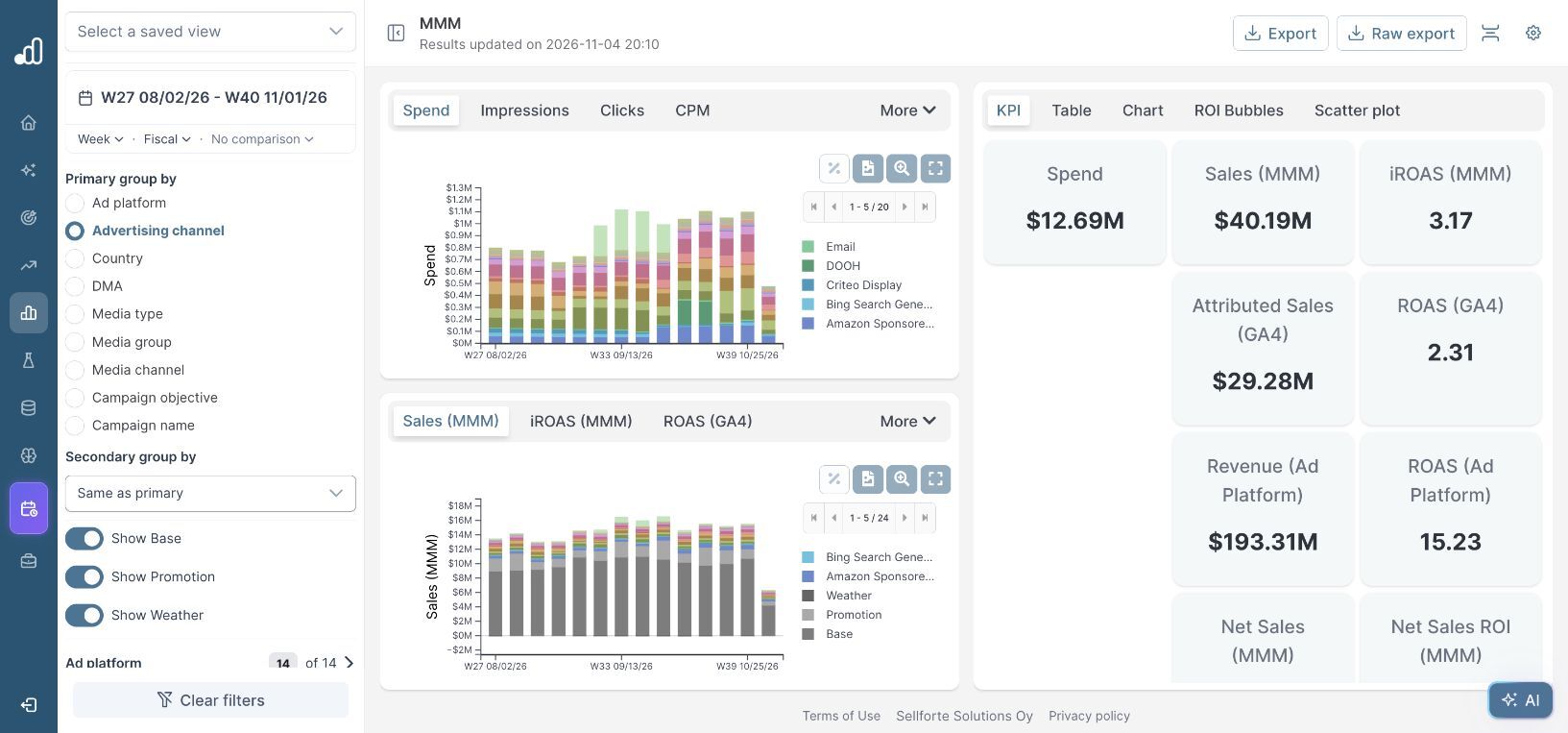
MMM Use Case

To allocate next month's media budget in Sellforte, create a budget-optimization scenario, define the planning weeks and total investment, and set realistic limits for each activity. Then review the forecast and weekly allocation before turning the scenario into a media plan.
This walkthrough uses the public Sellforte demo. It builds a four-week plan with week starts on December 6, 13, 20 and 27, 2026. Those weeks do not cover exactly the calendar month: the last runs into January. All screenshots and figures use simulated demo data captured on November 15, 2026.
Before you start: Agree the budget, business outcome, planning calendar, commitments and permitted changes. Check that your model and performance forecast are current.
What you will produce: A constrained candidate allocation with a forecast, weekly pacing and a list of checks required before approval.
1. Create the scenario and choose the outcome
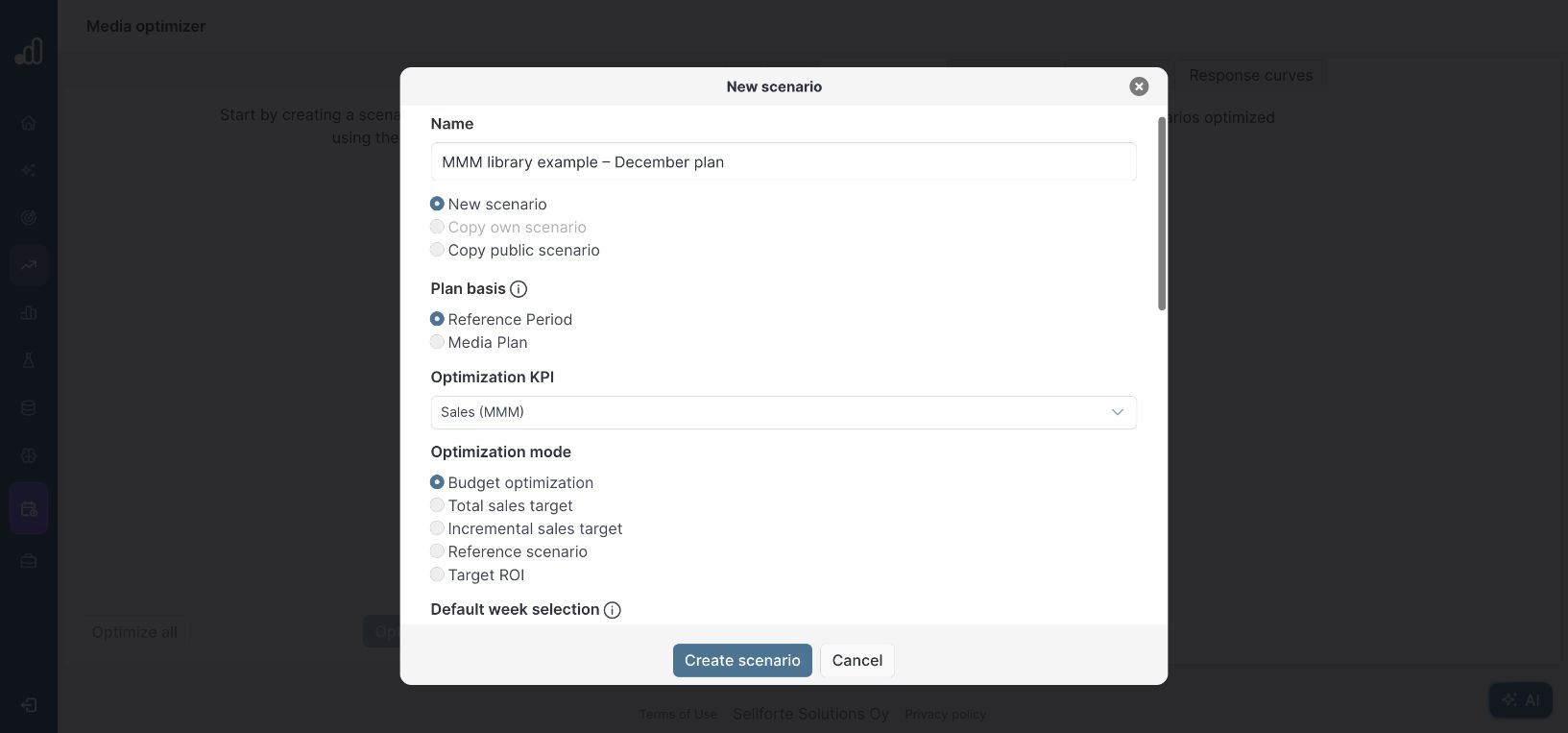
Open Planning → Media optimizer, select +, and choose New scenario. Give the plan a recognizable name. This example uses MMM library example – December plan, Reference Period as the plan basis, Sales (MMM) as the optimization KPI and Budget optimization as the mode.
Use the outcome that fits the decision. A revenue-maximizing allocation does not automatically maximize profit if margins differ. The miROAS guide explains why average return alone cannot determine the next allocation.
2. Align the planning weeks and reference period
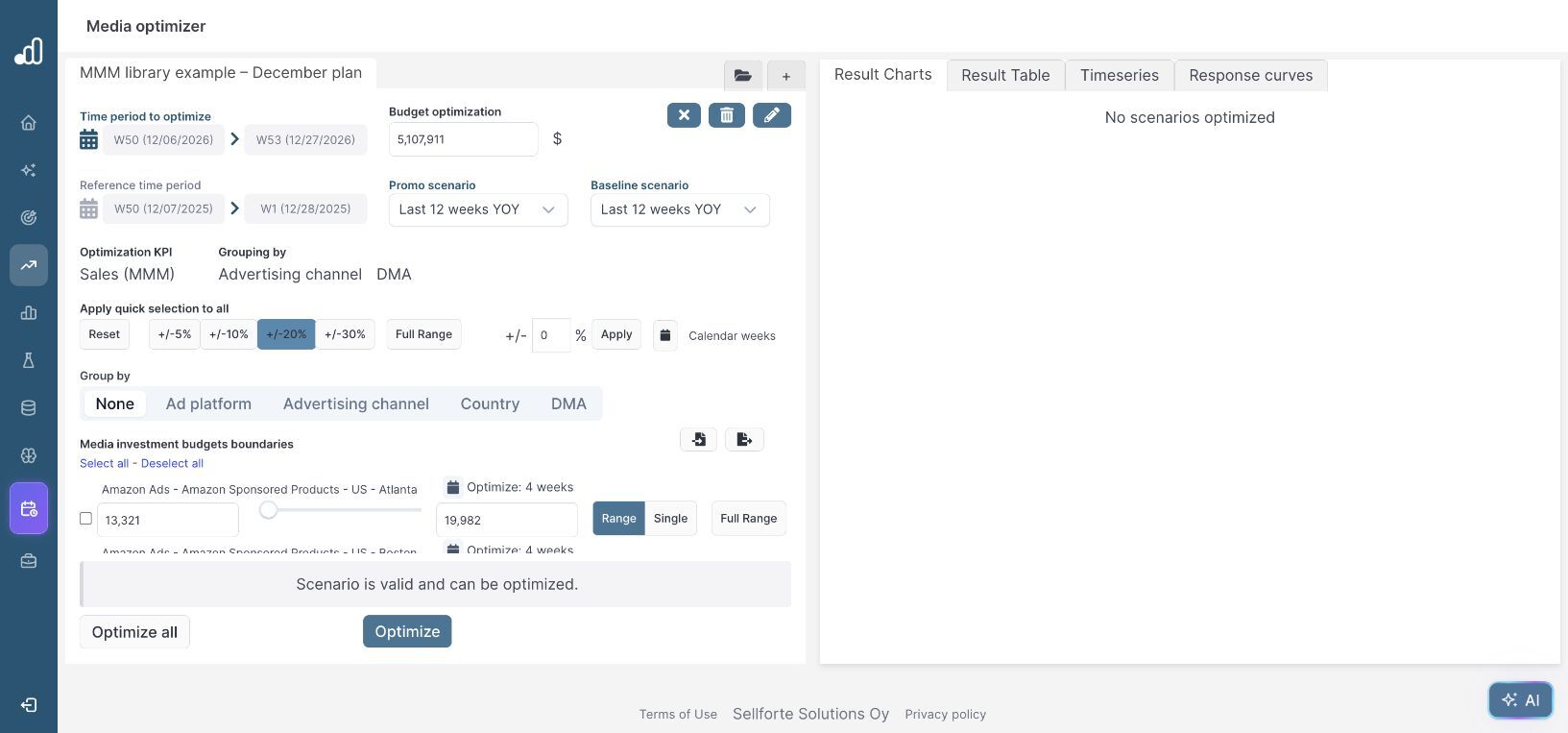
Choose Use Sellforte performance forecast and set the time period to the four weeks displayed as W50 (12/06/2026)–W53 (12/27/2026). The example uses Number of weeks for the default week selection and Use same weeks from last year for the reference: W50 (12/07/2025)–W1 (12/28/2025).
Group by Advertising channel and DMA. This example keeps the displayed US scope: 14 ad platforms, 21 advertising channels, 12 DMAs, two customer types, two sales channels and product category Overall. Confirm your own scope before creating the scenario; these selections differ from the historical MMM dashboard's aggregate filters.
The reference supplies a starting allocation. It is not a forecast of what an unchanged plan would generate next month. To assess the gain from reallocation, compare candidate and reference forecasts for the same future period and assumptions.
3. Set the total budget and practical boundaries
After creating the scenario, confirm the total budget. The demo reference produces $5,107,911. Keep both Promo scenario and Baseline scenario at Last 12 weeks YOY for this example. Review those assumptions against the planned promotions and expected underlying demand in a real plan.
Under Apply quick selection to all, choose +/−20%. The first displayed activity, Amazon Sponsored Products in Atlanta, has boundaries of $13,321–$19,982. These are scenario-period limits for that activity, not weekly budgets.
A uniform percentage range is a convenient starting point. Adjust individual limits for contracts, minimum viable spend, audience capacity, inventory and operational constraints. Check activities with zero reference spend: a percentage range around zero does not create room to launch them. Review each activity's selected weeks as well; the demo includes activities with fewer active weeks than the overall four-week horizon.
4. Calculate the candidate and inspect the results
Select Optimize. Once the success message appears, open Result Table and choose Advertising channel under Group by. Read the total first, then inspect the proposed channel allocations.
| Channel / total | Media investment | Sales (MMM) | iROAS (MMM) |
|---|---|---|---|
| Amazon Sponsored Products | $274.91k | $1.55M | 5.66 |
| Google Search Generic | $551.59k | $1.93M | 3.51 |
| Meta Prospecting | $596.68k | $1.67M | 2.80 |
| Meta Retargeting | $205.21k | $1.26M | 6.15 |
| All channels | $5.11M | $15.73M | 3.08 |
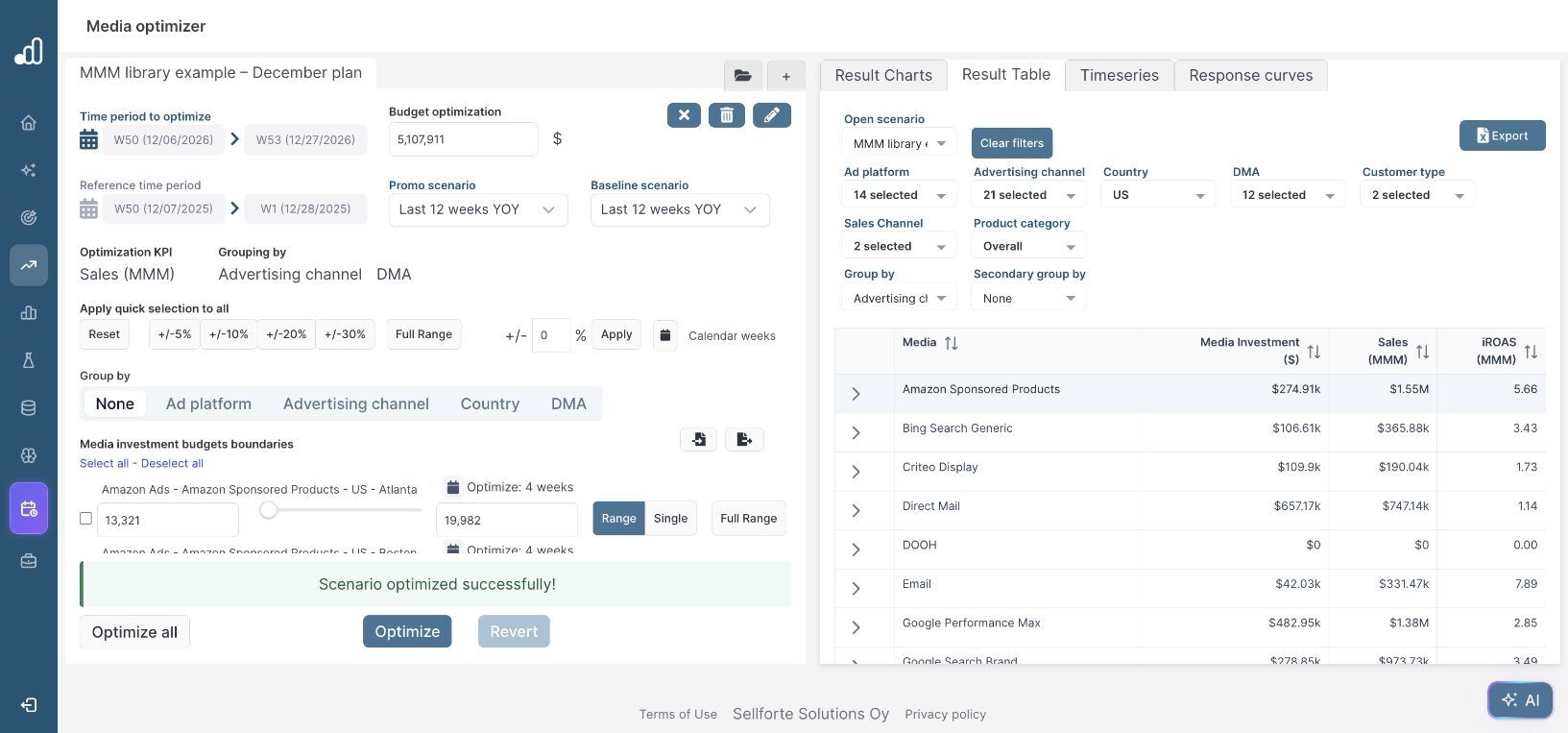
The table's total is forecast media-generated sales. In Result Charts, enabling Show base and Show promo gives a broader sales forecast: the demo displays $68.86M with both included. Do not divide that broader total by spend and call it media iROAS; the media-return figure shown for this scenario is 3.08.
This is one calculated candidate. The walkthrough does not establish an uplift over an unchanged plan, because it does not include a separately calculated reference forecast. Before claiming a gain, calculate a reference scenario for the same future weeks, budget, scope and forecast assumptions, then compare the outcomes.
5. Review weekly pacing and prepare the decision
Open Timeseries to inspect the weekly spend and sales patterns. The candidate does not spread investment evenly across its four weeks. Check that the proposed timing fits campaign dates, promotions, staffing and the selected activity weeks. Use Export when you need the allocation for a planning review.
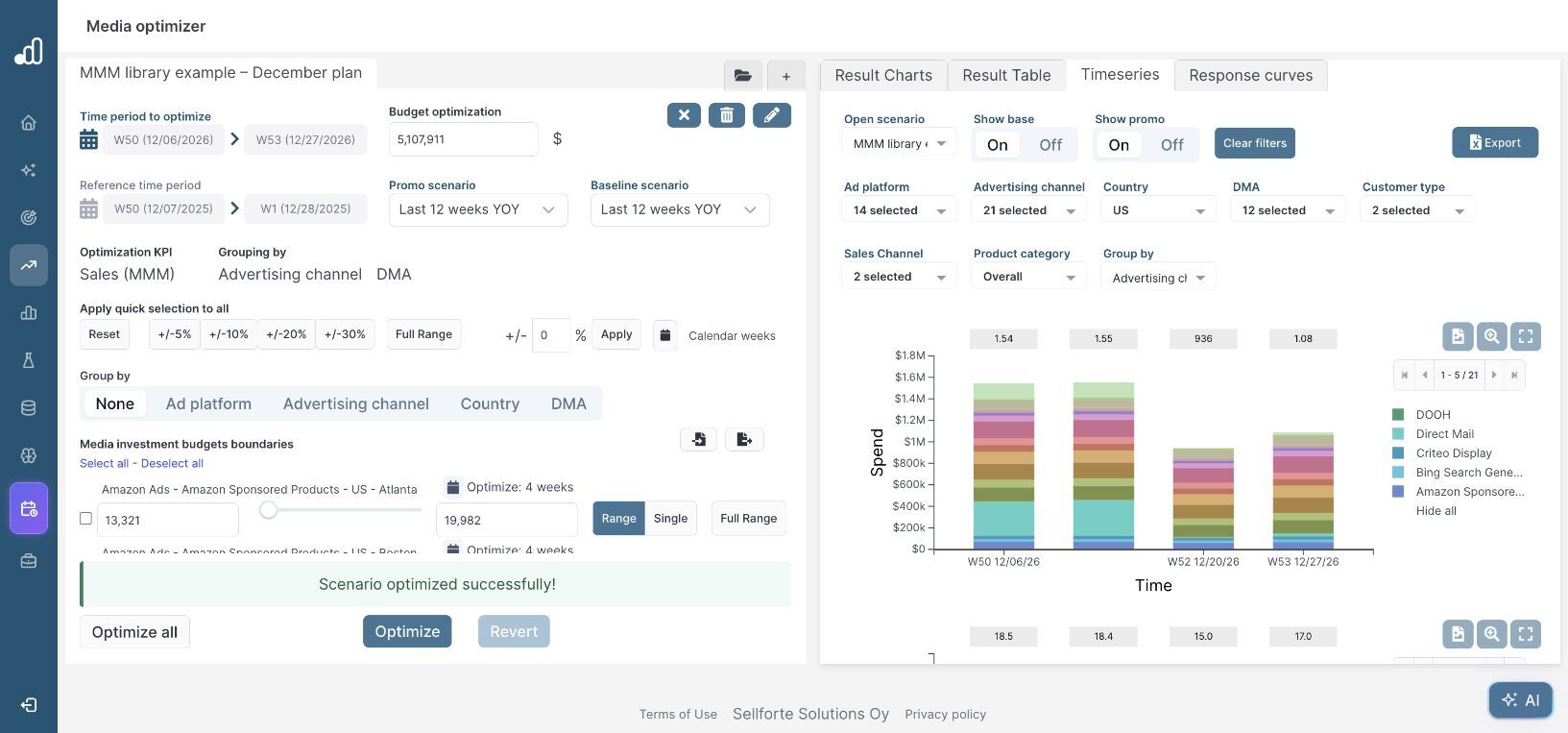
Compare the candidate with the reference forecast and a tighter-constraint alternative. Investigate large changes, activities sitting at their limits and recommendations beyond the model's observed spend range. Forecasts depend on the model, assumed conditions and permitted allocations; the result shown here is not a guaranteed outcome.
The four-week demo candidate allocates $5.11M and forecasts $15.73M in media-generated sales at 3.08 iROAS, within the configured activity boundaries. Before approval, compare it with an unchanged-plan forecast, review weekly pacing and confirm commitments with channel owners.
Keep the budget, period, assumptions, constraints and comparison results with the approved plan. The Sellforte Optimizer overview provides context for the planning workflow. Return to the MMM Use Case Library when you are ready to review performance after the plan runs.
Further Reading and Resources
Prepare the allocation
Review the measurement
About the author

Lauri Potka is the Chief Operating Officer at Sellforte, with over 15 years of experience in Marketing Mix Modeling, marketing measurement and media spend optimization. Before joining Sellforte, he worked as a management consultant at the Boston Consulting Group, advising some of the world’s largest advertisers on marketing optimization. Follow Lauri on LinkedIn.
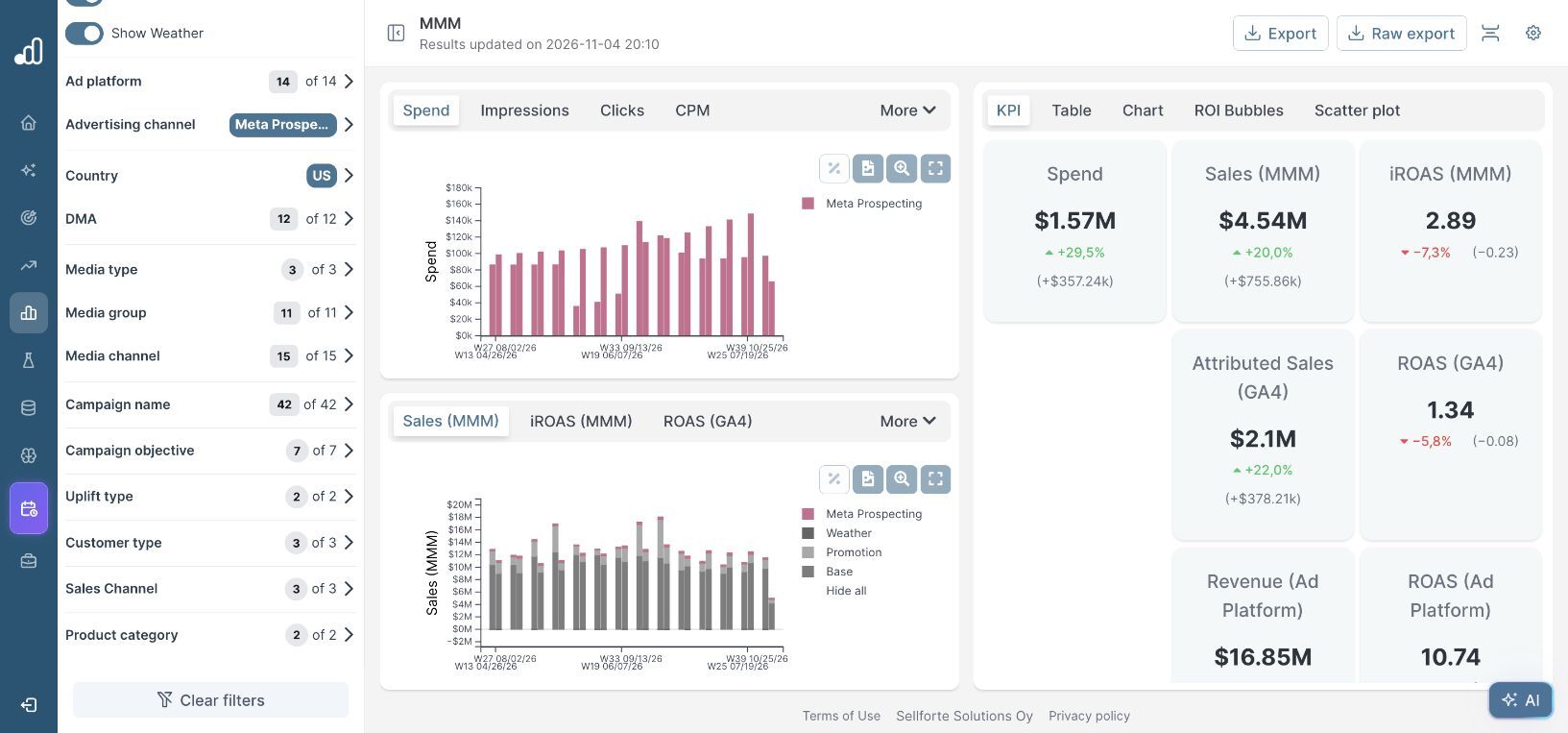
How to Understand Why a Channel’s Performance Changed
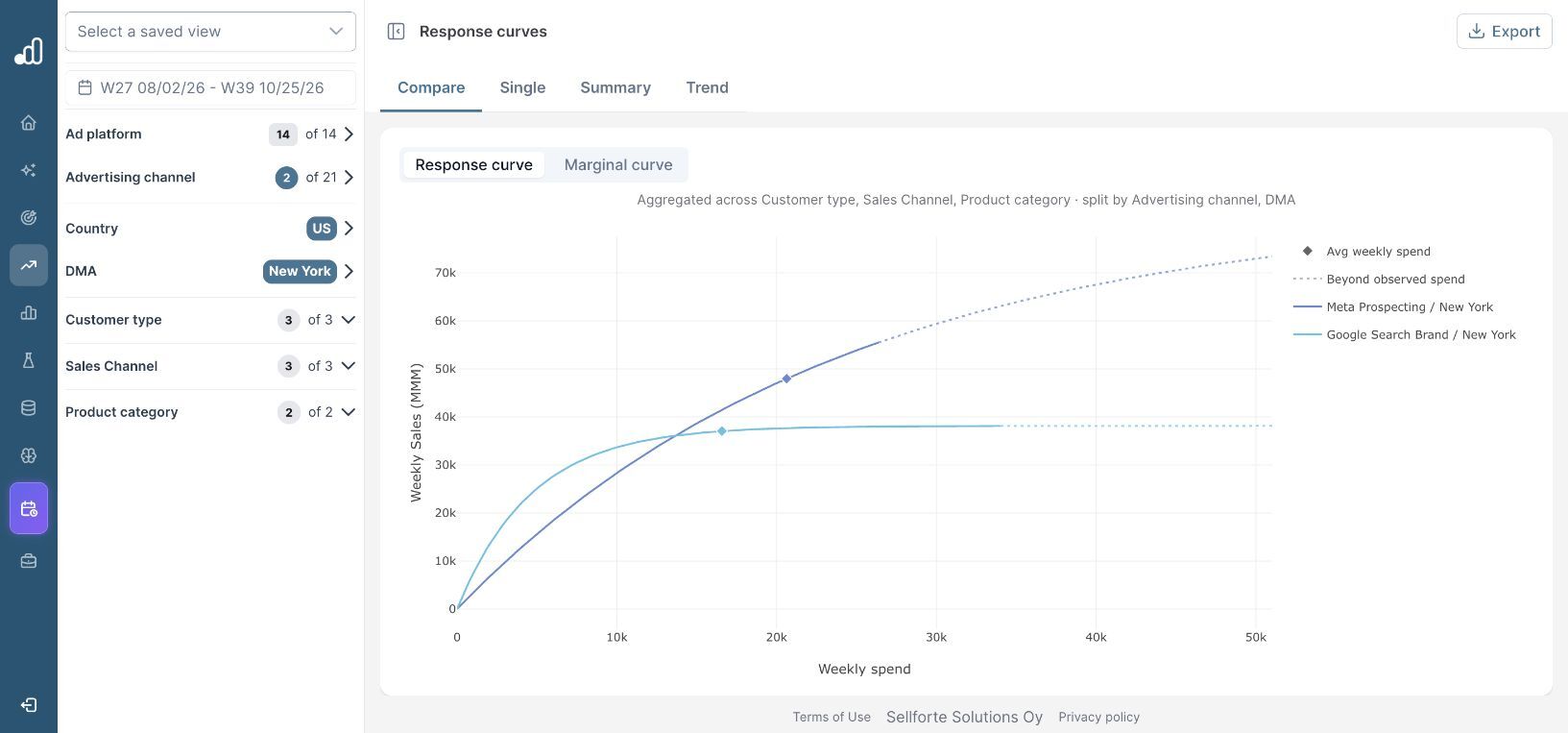
How to Spot Saturation and Find Room to Scale