
The Databricks connector lets Sellforte read Unity Catalog tables through a SQL Warehouse in your Databricks workspace. You choose which catalog and schema Sellforte sees, pick the tables you want to share, and the connector refreshes them on a daily schedule.
Databricks is one of Sellforte's data warehouse connectors, alongside Snowflake, BigQuery, and Azure SQL.
The connector copies each selected table as it is, without reshaping it. Agree with your Sellforte contact which tables to share, and make sure they follow the Sellforte data specifications described in Data Sources Specifications.
What you need before connecting
To set the connector up, have the following ready in your Databricks workspace. You need a SQL Warehouse that Sellforte can query. From the warehouse's Connection details tab you need the server hostname (for example, dbc-xxxx.cloud.databricks.com) and the HTTP path (for example, /sql/1.0/warehouses/abc123).
Decide which Unity Catalog Sellforte should read from. You can also set a default schema if you want the connector to focus on one.
For authentication, you can give Sellforte either a personal access token issued to a dedicated service identity in Databricks, or an OAuth machine-to-machine client ID and secret for a service principal.
The identity Sellforte signs in as typically needs the Unity Catalog grants USE CATALOG on the catalog, USE SCHEMA on the schemas you plan to share, and SELECT on each table or view. The same identity needs CAN USE on the SQL Warehouse. For OAuth M2M, these grants belong to the service principal that owns the client ID.
If your Databricks workspace restricts network access, you will also need to allow the Sellforte integration address in your workspace IP access list. The connector setup shows you the exact address to allow.
Creating the connector
In the left-side navigation pane in Sellforte, select Connectors under Data and start a new Databricks connection. The first dialog shows the address to allow if your workspace has IP restrictions. Add it, then press Create to continue.
Sellforte opens a secure connection form in a new browser tab. The form is one-time and expires 30 minutes after you open it, so fill it in during the same session.
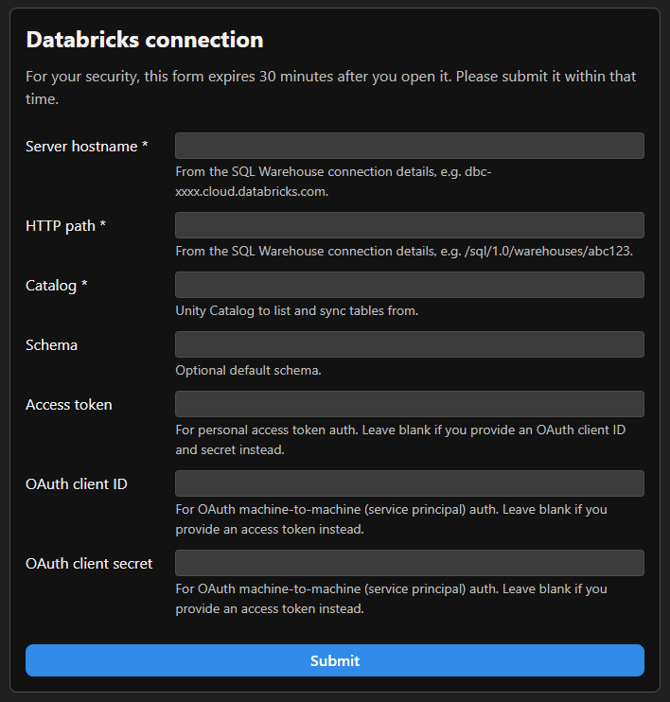
Fill in the server hostname, HTTP path, and catalog. Schema is optional and narrows the default scope. Provide either an access token or an OAuth client ID with a secret, not both. Press Submit when the form is complete.
Selecting tables to sync
Once the connector is live, a table editor opens from the table button on the connector card. Only the tables you choose are copied to Sellforte. A table that has a date column syncs windowed, so only the rows in the current fetch window are rewritten. A table without a date column is fully overwritten on every run.
How the sync behaves
A new Databricks connector starts with a preview that fetches only the current month and the two months before it. The historical backfill runs month by month and resumes if interrupted. A daily sync then keeps the data up to date.
Troubleshooting
If the connection form rejects your credentials, double-check the server hostname and HTTP path from the SQL Warehouse Connection details tab, and confirm that the warehouse is running or set to start automatically.
If the connection succeeds but no data arrives, confirm that the identity has USE CATALOG on the catalog, USE SCHEMA on the schemas, SELECT on the tables you want to share, and CAN USE on the SQL Warehouse.
If the connector stops syncing, for example after an access token expires or a client secret is rotated, contact your Sellforte contact and we will help you restore the connection.