
A briefing is a saved prompt that Sellforte AI runs on a schedule. Instead of opening the chat every Monday and re-typing the same question, you write it once, pick a cadence, and the answer is waiting for you. This article explains where briefings live in the product, how to set up your first one, what you get by email, and how to manage the briefings you already have.
What briefings are good for
A briefing fits any question you repeat on a rhythm. A weekly campaign read, a monthly channel summary, pre-QBR performance comparisons, or a check you run after every model update. If you have asked Sellforte AI the same thing more than twice, that is a briefing waiting to happen.
Each run lands in your Sellforte AI chat history as its own conversation, so you can ask follow-up questions straight away rather than reopening the chat and starting over.
Setting up a briefing
Where to find Briefings
Briefings sit beside Chat and History inside Sellforte AI. Open Sellforte AI from the left-hand navigation and switch to the Briefings tab. The tab lists everything you own, grouped into Active and Paused.
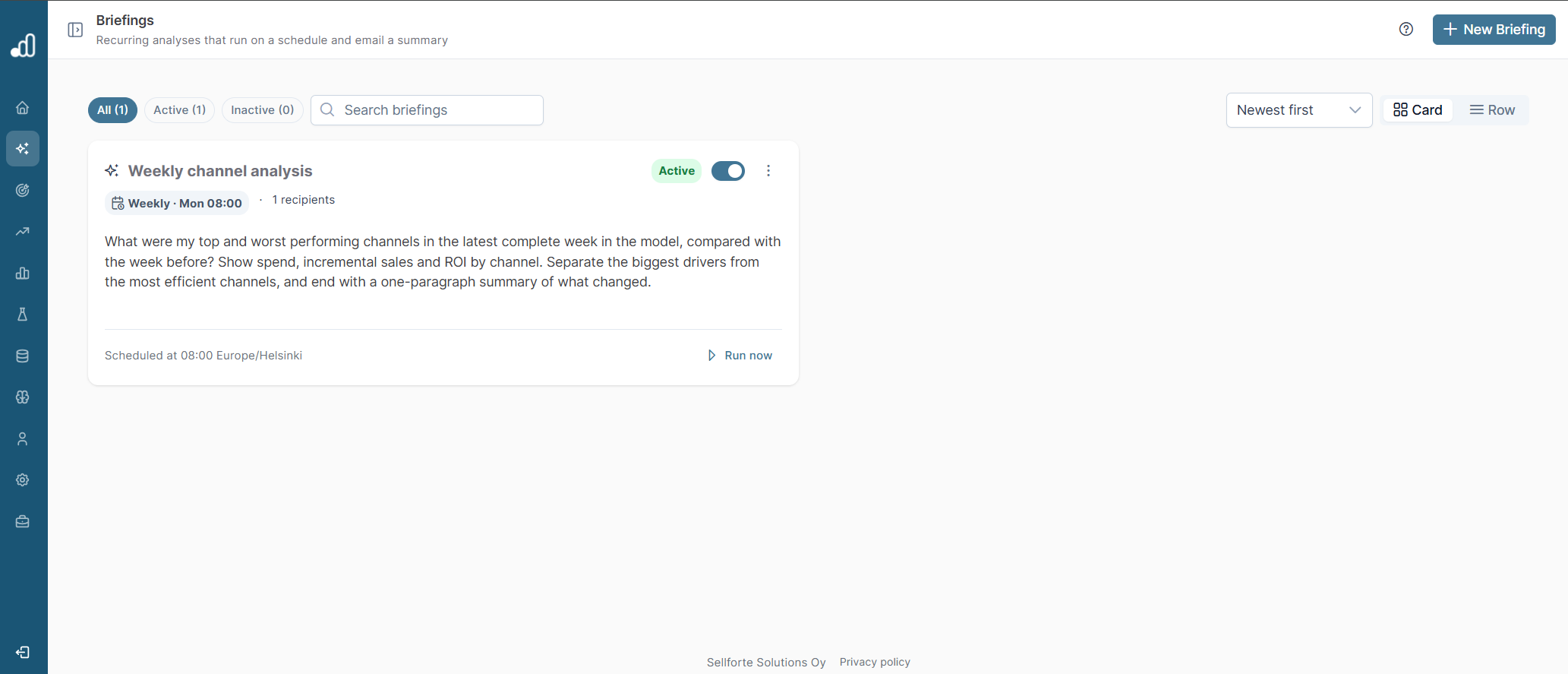
Creating a new briefing
Click New briefing in the Briefings tab. The setup drawer opens. Fill it in like this:
- Give the briefing a short name that tells you at a glance what it covers.
- Write the prompt the AI should answer. This is the same text you would type into Chat today, so be specific about the time period, market and metric you want.
- Pick a schedule. Daily, Weekly or Monthly, with the day and time in your timezone.
- Choose the summary length: Concise, Standard or Detailed.
- Add recipients if people other than you should receive the email.
- Click Run now to generate the first result straight away, and review that result before you save. This way the briefing starts arriving on the schedule only once the output looks right.
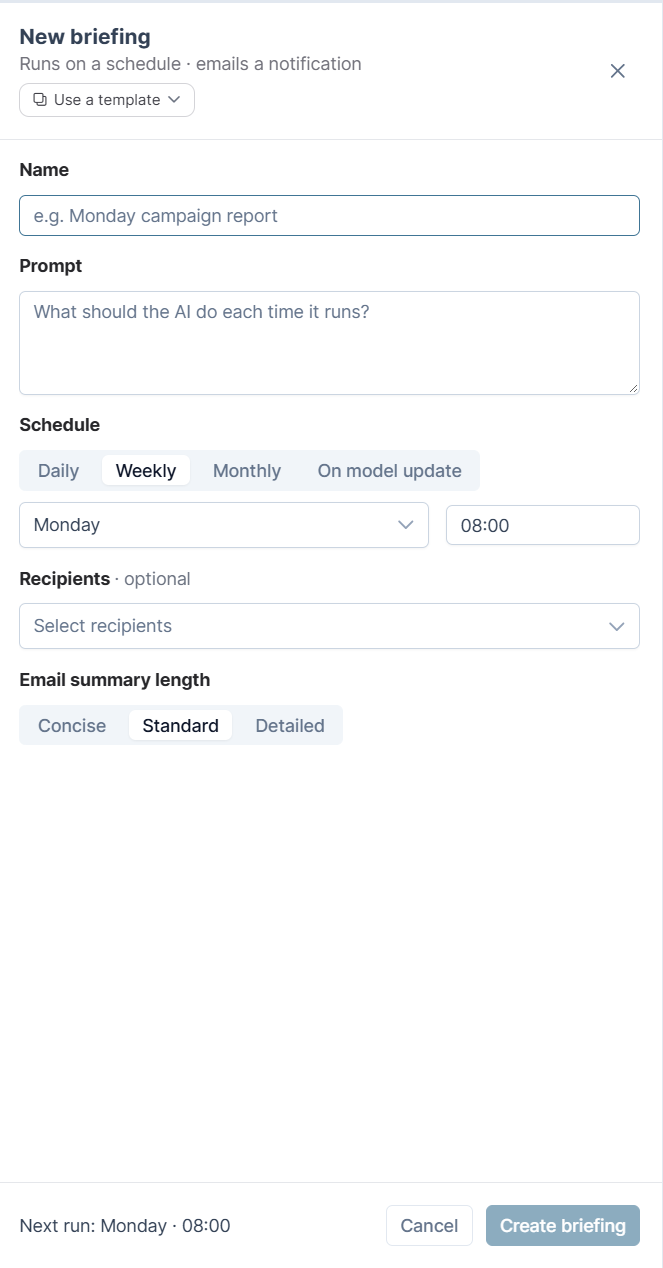
Once saved, the briefing is active and will run on the schedule you picked. You can switch it to Paused at any time without losing the setup.
Starting from a template
If this is your first briefing, the Briefings tab offers templates you can pick instead of writing a prompt from scratch. The defaults cover a weekly channel analysis, a monthly review, and campaign recommendations. Picking a template pre-fills the drawer with a prompt and a suggested schedule, which you then adjust before you save. If your admin has customised the template list for your organisation, those entries appear here as well.

What happens after setup
What arrives in your inbox
When a briefing runs, every recipient gets an email that links back to the run inside Sellforte AI. The email tells you a new briefing is ready; open the link to read the summary, see the underlying data and continue the conversation. Because the run is a normal chat, your follow-up question lands next to the answer rather than in a new session, and the whole thread stays available in your history.
Managing existing briefings
Open any briefing from the Briefings tab to see the latest run, the full run history, and the setup that produced it. The Edit action opens the same drawer you used at setup, where you can change the prompt, cadence or recipients, or delete the briefing. The Active and Paused toggle sits on the briefing card and takes effect from the next scheduled run.
Getting the best results
A briefing is the same Sellforte AI that answers your questions in Chat, so the same practices apply. Be specific about time period, market and metric when you write the prompt, and use Run now during setup to tune the wording until the first result looks the way you want. For more on how Sellforte uses AI, see the Sellforte AI Use Statement (link to https://sellforte.com/support/sellforte-ai-use-statement).