
What you can plan with Sellforte MCP
Sellforte MCP lets you build and compare media plans in plain language, inside Claude, ChatGPT or another MCP client. The plans are real Media Optimizer scenarios, built on your own Marketing Mix Model and its response curves, and they are saved to your Sellforte environment where the rest of your team can open them.
This page covers channel level planning: how much to spend in total, and how to split it across channels, markets and weeks.
|
You can ask for |
What comes back |
|---|---|
|
An optimized allocation |
The recommended split of a given budget across channels for a given period |
|
A forecast for your own plan |
Expected sales, incremental sales and ROI for a media plan you already booked |
|
A budget change simulation |
The modeled effect of spending more or less, either uniformly or optimized |
|
Planning constraints |
Channel minimums and maximums, locked channels and specific planning weeks |
|
A comparison against a baseline |
Two or more scenarios side by side with the differences per channel |
|
Your saved plans |
Previously created scenarios with their inputs, budgets and results |
Reporting on what already happened is covered in Marketing Reporting with Sellforte MCP.
Before you start
You need Sellforte MCP connected to your LLM client. The steps, including the EU and US server URLs, are in Connecting Sellforte MCP to your LLM client.
Three things are worth knowing before your first planning question:
- Scenarios are saved, not temporary. Creating a plan through the MCP persists it in your Sellforte environment, exactly like a scenario created in the Media Optimizer UI.
- Planning weeks are full weeks. Start and end dates snap to full Monday to Sunday weeks, so a period you name is aligned before the plan is built.
- Plans age with the model. Each saved scenario is flagged against the last model refresh, so you can see which plans were built on superseded results.
Creating an optimized channel allocation
Ask for an optimized plan and the MCP runs Sellforte's optimization engine, which reallocates budget across channels using the diminishing returns curves from your Marketing Mix Model. You give the budget and the period, and you get the recommended split.
Every plan is built from one of three templates:
|
Template |
What it does |
|---|---|
|
Sellforte optimized |
Reallocates spend across channels to maximize the outcome at the given budget |
|
Business as usual |
Keeps each channel's current share and scales the total, without reallocating between channels |
|
Reference scenario |
Takes your booked plan exactly as it is, week by week and channel by channel, and only forecasts it |
Example prompt: "Build an optimized media plan for the next quarter, and show the recommended split by channel."
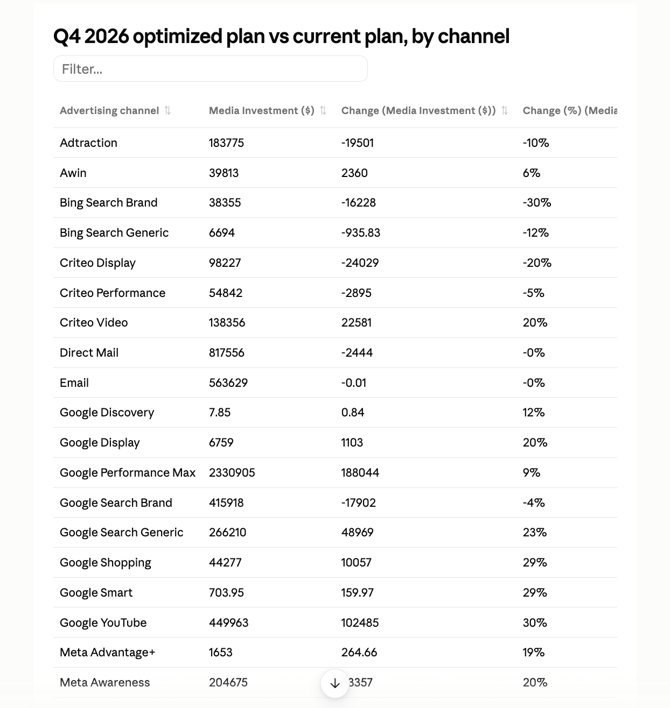
Other example prompts:
- "Create an optimized plan for next quarter at our current budget level."
- "What is the optimal channel mix for 2 million in Germany in October?"
- "Optimize next spring's budget and create a business as usual plan next to it."
When you ask for an optimized plan, it is worth creating a business as usual plan alongside it. Comparisons need something to compare against.
Simulating a budget change
Budget questions come in two flavors, and the wording decides which plan is built:
- Scale / cut evenly. "Cut every channel by 15 percent" or "spend 10 percent more across the board" keeps the current channel shares and scales them. Nothing is reallocated.
- Optimize at a new budget. "What is the best plan if we cut the budget by 15 percent?" lets the optimizer move money between channels to protect the outcome.
The difference matters, because the second usually loses far less sales than the first. Running both is the fastest way to show what an even cut costs you.
Example prompt: "How much sales would I lose with a 10% budget cut?"
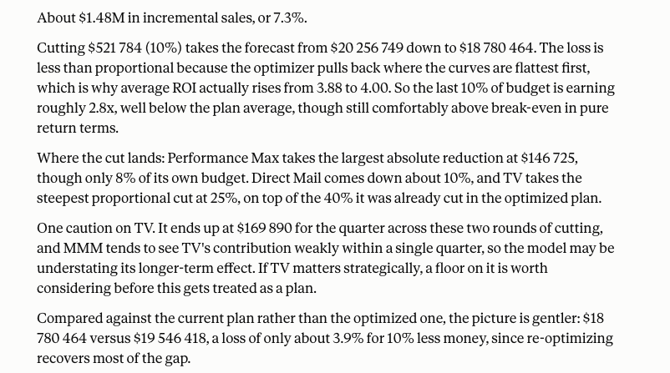
Other example prompts:
- "What happens to sales if we reduce media spend by 10 percent next year?"
- "How much extra incremental revenue would a 500 000 budget increase deliver?"
- "Simulate cuts of 5, 10 and 20 percent and show where the drop off starts."
Applying planning constraints
Real plans have commitments. Constraints are passed to the optimization engine with the plan and come back resolved in the result, so you can see exactly what the optimizer was allowed to do.
|
Constraint |
Example wording |
|---|---|
|
Planning period |
"for January to March 2027" |
|
Total budget |
"with a 4 million budget" or "at 10 percent below this year" |
|
Channel minimum or maximum |
"keep at least 800 000 in TV" or "cap Meta at 1.2 million" |
|
Channel level change |
"increase Google by 10 percent and optimize the rest" |
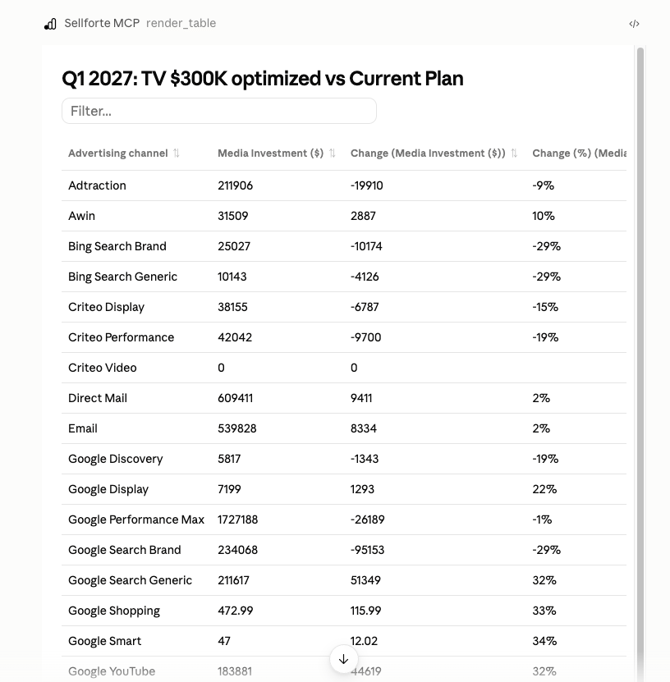
Example prompt: "Build an optimized scenario for Q1, but fix TV spend at $300,000."
Comparing scenarios against a baseline
A plan only means something next to another plan. Name one scenario as the baseline and the MCP returns the others against it, with the difference and the percentage difference per channel and in total. Metrics compared are media investment, incremental sales and ROI.
Example prompt: "Build an optimized plan for Q1. Compare the optimized plan against our business as usual plan, and show the difference by channel."
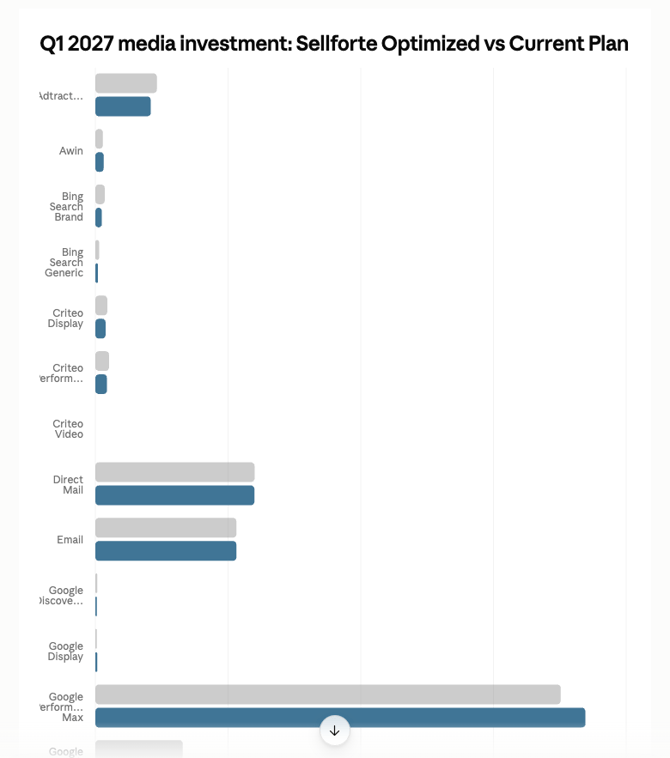
With exactly two scenarios you always name the baseline, so the direction of the difference is never guessed. With three or more, the values are shown side by side.
Planning against a business target
Sellforte's Media Optimizer supports four target modes: total sales target, incremental sales target, target ROI and target CPA. Instead of fixing a budget, you fix the goal and the optimizer works out the budget and the mix needed to reach it.
Example prompt: "Build an optimized plan for Q1. Then build a plan where I would drive +10% more revenue than the optimized one."
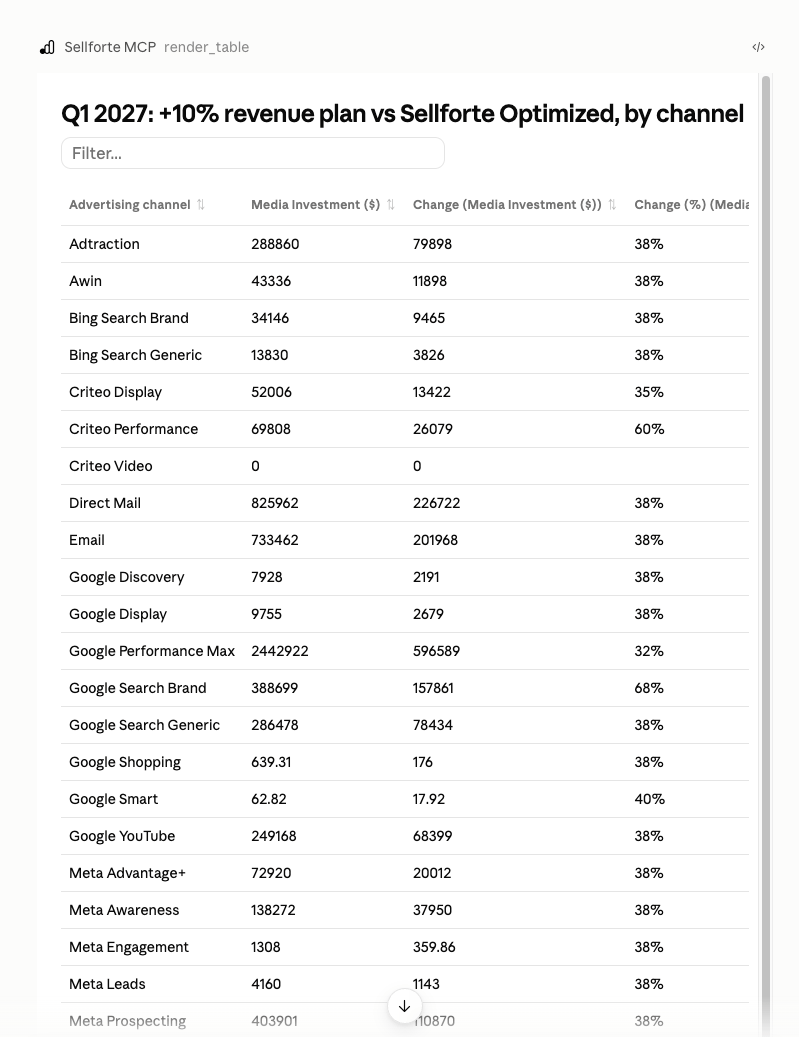
Example prompts:
- "Which of my saved plans were optimized toward a sales target?"
- "What budget does my sales target scenario require, and what ROI does it assume?"
- "Compare the target ROI plan with the plan we booked."
Retrieving saved plans and their assumptions
Every scenario you or your colleagues have created is retrievable through the MCP, with its identifier, its planning window, its resolved total budget and the settings it was built with: the template, the optimization mode, the reference period and the media performance assumption.
You can narrow the list to a period, and you can filter by freshness. Each plan is checked against the last model refresh, so plans built on superseded results are flagged rather than presented as current.
Example prompts:
- "List my plans covering Q4 2026."
- "Which of my scenarios are stale and should be rebuilt?"
- "What settings were used for the optimized autumn plan?"
Working with the results
Planning answers come back as Sellforte's own tables and charts inside supported clients, plus the underlying rows as structured data you can reuse for a budget sheet or a board slide. Results can be filtered and grouped by the same dimensions as the rest of your model, so an allocation can be read by channel, by platform or by market.
Four things to check before a plan leaves the conversation:
- The resolved budget. The plan reports the total it actually used, which can differ from the reference period you had in mind.
- The period. Dates align to full weeks, so the planned window may be slightly wider than the one you named.
- The constraints. Confirm the minimums, maximums and locks you asked for are listed as applied.
- The freshness flag. A plan built before the latest model refresh should be rebuilt before you act on it.
Related articles