
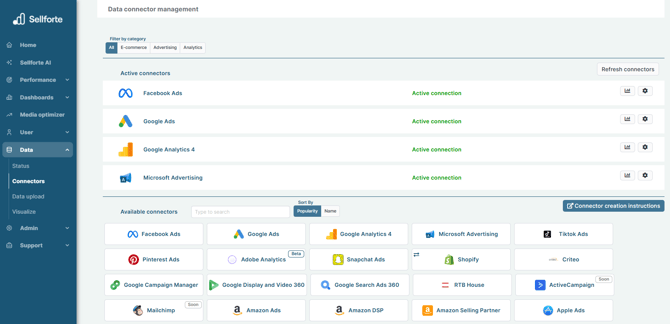
1. Log in to Sellforte and navigate to Connectors
- In the left-side navigation pane, select Connectors under Data.
-
From the Available connectors list, click the card for the relevant connector to start the connection.
2. Add your shop name
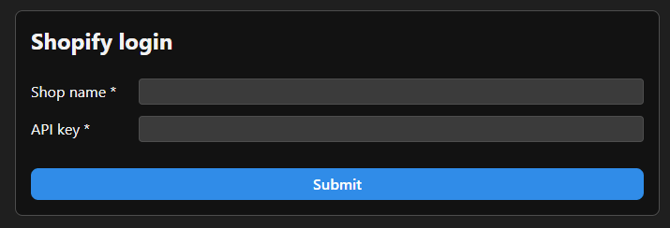
Give the name of your Shopify store. Shopify store name can be found in the URL, for example "mystore.myshopify.com" or "admin.shopify.com/store/mystore", where mystore is a placeholder for your shop's name.
3. Generate API access token
Generate Shopify API access token using these instructions.
3.1 Go to "Apps and Sales channels" in Shopify settings
In the Shopify dashboard, click "Settings"
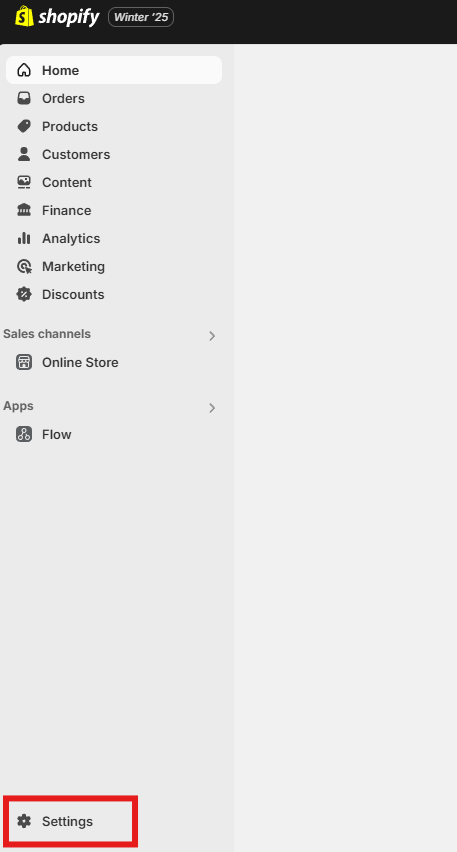
In the Settings section, click "Apps and sales channels"
-1.png?width=301&height=624&name=image%20(7)-1.png)
3.2 Create an app
In the "Apps and sales channels" view, click "Develop apps".
-1.png?width=670&height=128&name=image%20(8)-1.png)
Then click "Create an app".
.png?width=670&height=56&name=image%20(9).png)
Give a name for the app.
.png?width=637&height=154&name=image%20(10).png)
3.3 Configure the app
After you have created your app, you will be redirected to "Overview" tab. Move to the "Configuration" tab. In the "Admin API integration" section, click "Configure".
.png?width=670&height=244&name=image%20(11).png)
In the "Admin API access scopes" section, enable following access scopes:
read_analytics
read_assigned_fulfillment_orders
read_orders
read_all_orders
read_order_edits
read_returns
read_discounts
read_customers
read_products
read_inventory
After choosing correct scopes, click Save.
.png?width=670&height=625&name=image%20(12).png)
3.4 Copy & save your API access token
After saving the correct access scopes, go back to "Overview" tab. In "Install to get your access token" section, click "Install app".
.png?width=670&height=294&name=image%20(13).png)
When app is installed, you are able to reveal your API access token once. Take a note of your API access token. API access token starts with shpat_.
.png?width=670&height=280&name=image%20(14).png)
4. Add API access token to the form
5. Click "Submit" and you are forwarded back to Sellforte

You are ready! 🎉
Shopify is connected and data is fetched automatically with correct MMM schema to Sellforte.