
When you open Media Optimizer, you can start working with existing scenarios, or start to create new ones.
If you want to continue working with your previously created scenarios, you can find them directly from your screen as a tab in the Optimizer, or you can open them by clicking the folder icon.

If you want to create a new scenario, click the plus icon.

You can create a new scenario in three ways:
-
New scenario: a completely new scenario
-
Copy own scenario: copy a scenario you created previously
-
Copy public scenario: copy a scenario created and published by someone else from your team

You can also name your scenario. It's important to name your scenario accordingly so it's easier to compare multiple scenarios in the analysis view!
When you create new scenario, there are few settings you need to set up, which will define how the optimization works. Let's go through them one by one next.
Optimization mode
When creating a scenario, you need to choose an optimization mode.
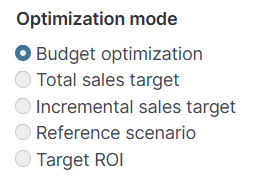
Budget optimization
Answers the question: given a fixed budget, how should we split it across channels and weeks to maximize incremental sales?
This is the most common starting point for planning. You tell the optimizer how much you have to spend, and it decides both the channel mix and the week-by-week phasing that gets the most incremental sales out of that budget. Use this when the budget is already locked in — for example, when you've been given a €300k allocation for the quarter and need to plan how to deploy it.
Total sales target
Answers the question: how much do we need to invest to reach a given total sales target?
Here the target is the total sales number, and the optimizer works out the minimum spend and the mix required to reach it. Use this when the business has committed to a top-line sales number and you need to understand what it will cost in media to get there.
Incremental sales target
Answers the question: how much do we need to invest to reach a given incremental sales target?
The logic is the same as Total sales target, but the target is stated in incremental sales — the additional sales that media actually drives, on top of the baseline. Use this when your steering is anchored on the media-driven contribution rather than the top-line number, which is usually a cleaner way to hold media accountable for what it can actually influence.
Target ROI
Answers the question: what's the largest plan we can run while keeping ROI at or above a target level?
You set an ROI target, and it works as a constraint: the optimizer will scale investment up to the point where the marginal return on the last euro spent still meets the target, and stop there. Use this when the business has an efficiency floor that must be respected — for example, "we can spend as much as we like as long as ROI stays above 3.0" — rather than a fixed budget or a fixed sales number.
Reference scenario
Takes an existing scenario as its starting point and uses the same budget and weeks as that scenario, so you can compare like with like.
The budget and weeks cannot be changed in this mode — they are inherited from the reference. This isn't really an "optimization" in the same sense as the others; it's a way to reproduce the context of another scenario so you can build on it, cross-check it, or run a what-if against a known baseline. Combined with "Use reference period media performance" and "Calendar weeks in order", this is also the mode to use when you want the scenario to reproduce Marketing Dashboard numbers exactly.
Default week selection
When creating a scenario, you also need to choose the default week selection. This controls how the optimizer decides which weeks within the optimization period to actually invest in — it uses the reference period as a template, and this setting tells the optimizer how strictly to follow that template. It's easiest to explain through an example, so we'll use one throughout: a reference period of weeks 40–50, in which TV ran during weeks 41, 42, and 43.

Number of weeks
Keeps only the count of active weeks from the reference; the optimizer is free to pick which specific weeks are best.
In the example, TV ran for 3 weeks in the reference (weeks 41, 42, 43). With this setting, the optimizer will still run TV for 3 weeks, but it will place them on whichever 3 weeks within 40–50 look best given the forecast. Use this when you want the most flexibility — the reference tells the optimizer how much activity is realistic for each channel, but not exactly when to run it.
Calendar weeks (in order)
Keeps the relative position of the active weeks from the reference; the optimizer shifts them to the equivalent positions in the new period.
In the example, TV ran on the 2nd, 3rd, and 4th weeks of the reference (weeks 41, 42, 43 out of 40–50). With this setting, if you now optimize weeks 40–50, TV lands on weeks 41, 42, and 43. But if you optimize weeks 30–40 instead, TV shifts to the 2nd, 3rd, and 4th weeks of that period — weeks 31, 32, and 33. Use this when the shape of the plan matters — the ramp-up and phasing pattern of the reference — but the calendar itself doesn't. This is also the setting to use, together with a reference scenario and "Use reference period media performance", when you want the scenario to reproduce Marketing Dashboard numbers exactly.
Calendar weeks (match week numbers)
Keeps the exact calendar weeks from the reference; the optimizer runs each channel on the same week numbers as in the reference regardless of the optimization period.
In the example, TV ran on weeks 41, 42, and 43 in the reference. With this setting, TV will run on weeks 41, 42, and 43 in the new scenario too, always. This mode always spans 52 weeks by default. Use this when the calendar itself is the plan — for example when seasonality, campaign calendars, or category events dictate that certain activity always happens in certain weeks of the year, and you don't want the optimizer to shift things around.
Media performance selection
When you create a scenario, the Media Optimizer has to make an assumption about how each channel will perform during the optimization period. The "Media performance selection" controls exactly which assumption is used. This choice matters more than it might look — it directly shapes the ROAS you see in the reference scenario and the reallocation the optimizer recommends.
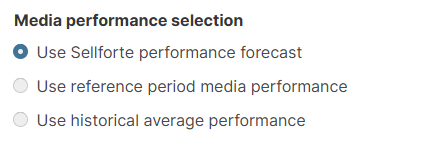
Use Sellforte performance forecast (default)
Carries each channel's recent performance level forward into the optimization period, so the forecast reflects how the channel is actually running right now.
This is the "look-back" logic. Rather than assuming every channel will perform at its long-term average, the optimizer looks at how each channel has actually performed in the recent past and carries that relative performance level forward into the optimization period. The look-back window is dynamic: it matches the length of your planning period, with a sensible minimum so that very short plans don't rest on a single volatile week. For a multi-week plan, the forecast is built week by week — the first week of the plan mirrors the most recent historical week, the second averages the two most recent weeks, the third averages the three most recent, and so on. This is why the forecast is well-suited to peak-versus-non-peak planning: it captures the fact that channel performance genuinely varies across periods, instead of flattening everything to a single average.
The practical value is easiest to see through an example. Imagine one of your channels has underperformed its long-term average by 40% for the past several weeks — not because of anything media-related, but because of a range and price issue upstream. A forecast built on long-term averages would happily recommend shifting more budget into that channel next month, and be obviously wrong to anyone who has been watching it. The Sellforte performance forecast avoids this by carrying the recent underperformance forward: if a channel has been running below its baseline for the past six weeks, the optimizer will assume it continues to run below baseline in the coming weeks.
To make this concrete: suppose you're planning weeks 40–43 of 2025 and the most recent completed week is week 39. Week 40 of the plan mirrors week 39; week 41 averages weeks 39 and 38; week 42 averages weeks 39, 38, and 37; and week 43 averages weeks 39, 38, 37, and 36. As the plan extends further into the future, the look-back naturally widens, smoothing out short-term noise.
Use reference period media performance
Locks the assumed channel performance to what the channels actually delivered during your selected reference period, and is the right choice when you want the scenario to match the Marketing Dashboard exactly.
Instead of a forward-looking forecast, the optimizer uses the recorded performance of the reference weeks as the basis for its calculations. This is the right selection when you want the scenario to match the Marketing Dashboard exactly — for example when reproducing historical numbers, running a historical what-if, or cross-checking that the optimizer and the dashboard are telling the same story. Combined with a reference scenario as the optimization mode and "Calendar weeks in order" as the default week selection, this option reproduces the same figures you see in the Marketing Dashboard for the same period.
Use historical average performance
Uses each channel's long-term average performance across the full modelling history, ignoring both the season and recent trends.
This is the behaviour that was in place before the media performance selection was introduced. It doesn't adjust for where in the year you are planning or how the channel has performed recently. It remains available for continuity, but for most planning work either the Sellforte performance forecast or the reference period option will give more realistic results.
Time period to optimize
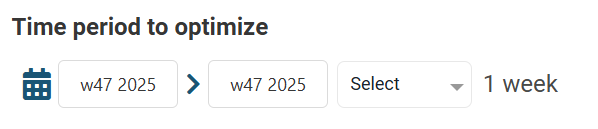
Next, you can choose Time period to optimize. For example if you are crafting media plan for the first half of a year media plan for the first half of 2025, you can choose weeks accordingly.

You can also make a plan for shorter time period. If you for example want to optimize your media allocation for the upcoming Black Week, you can choose the sole week.
Reference time period
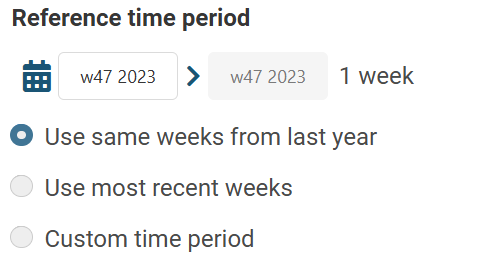
The Media Optimizer uses historical investments to derive reference values for budgets and sales targets . For that purpose, you should pick reference time period for your scenarios.
You can choose to use same weeks from last year or most recent weeks. You can also set custom time period in order to set reference period yourself.
Choose dimensions
The final step in the scenario creation flow is choosing your dimensions. Dimensions are the lenses through which the optimizer will present the results — they determine how spend, incremental sales, and ROAS are grouped in the analysis view once the scenario has run. You can pick up to two dimensions per scenario, so the choice matters: it defines what comparisons you'll be able to make without going back and rebuilding the scenario.
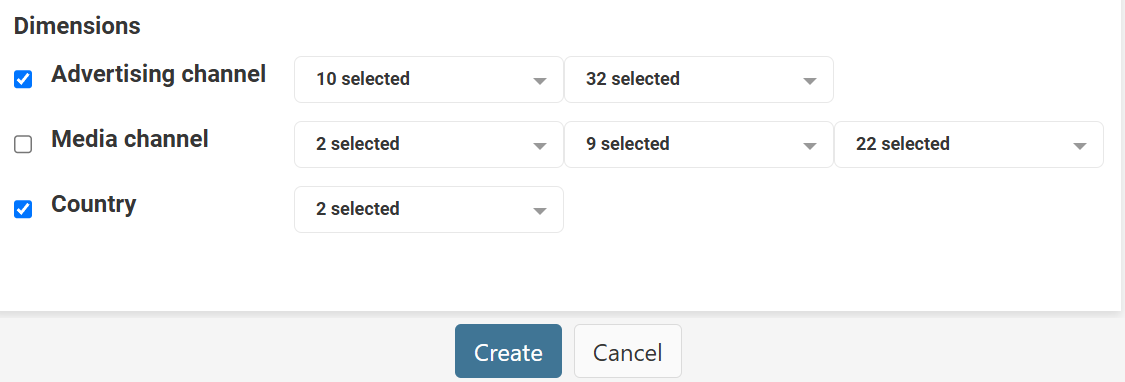 A single dimension is enough when you want a straightforward view of results — for example, channel category to see how budget shifts between broad groups like Search, Social, and Display. A second dimension lets you see a cross-cut of the first, which is often where the more actionable findings sit. Channel category combined with advertising channel, for instance, reveals where within a group the reallocation is really happening — whether the extra budget going to Social is landing in Meta, Pinterest, or TikTok, and inside Meta whether it's going to sales campaigns or Advantage+. Channel category combined with campaign objective works similarly, showing whether the optimizer is favouring conversion campaigns over traffic or awareness within each group.
Choose the dimensions that match the decision you're preparing for. If the scenario is meant to guide a top-line budget conversation, one high-level dimension is usually plenty. If the scenario is meant to give channel teams concrete guidance on where to move money within their channel, the second dimension is what makes that possible. Because the limit is two, it's worth thinking about the pair together rather than picking each in isolation — the value is in the cross-cut they produce.
Configure your scenario
After you have finished the scenario creation and clicked the "Create" button, the scenario will be created based on the choices you made during the creation process and will open on the left side of your screen. However, you still have the option to customize your scenarios with multiple ways. Learn here how you can setup your scenarios.