
Custom dimensions let you enrich your marketing data with categories that aren't already present in your raw data. For example, you can take a campaign name and derive a new "Campaign type" column from it by matching keywords. Once created, the new dimension flows through to your model and becomes available for reporting and analysis just like any other dimension.
The good news: creating a custom dimension is mostly a thinking exercise, not a technical one. You decide what the new dimension should be and what rules define it — your Sellforte CSM takes care of setting up the Google Sheet and connecting it to your data.
What you can use custom dimensions for
Custom dimensions are flexible. A few common examples:
-
Brand — split campaigns across multiple brands or sub-brands so you can analyze each one separately.
-
Campaign type — classify campaigns as Brand, Performance, or Tactical based on keywords in the campaign name.
-
Product categorization — derive a product category (for example "Footwear", "Apparel", "Accessories") from campaign names.
Anything that's implicitly encoded in your campaign names (or another existing column) can be turned into a clean, structured dimension that's usable across Sellforte.
What you need to know before starting
To create a custom dimension, you really only need to answer two questions.
-
First, which existing column contains the information the new dimension should be derived from? In most cases this is the campaign name, since marketing teams typically encode a lot of information there through naming conventions. But it could also be a campaign ID, ad set name, or any other column in your raw data.
-
Second, what are the target values, and what keywords identify each one? For example, if you want a "Campaign type" dimension with the values Brand, Performance, and Promo, you need to define which keywords in the campaign name map to each of those.
That's the full thinking exercise. Once you have those two things, you're ready to hand them over.
Mapping examples
To make this concrete, here are a few example mappings. Each table shows real-world style campaign names, the keyword that gets matched, and the resulting dimension value. In practice, your own campaign names will look different — they'll reflect the naming conventions your team actually uses — but the principle is the same: find a keyword in the campaign name that reliably indicates the category, and map it to the value you want.
Note that real campaign naming is often messy. It might mix uppercase and lowercase, use different separators (_, -, spaces), include date ranges, market codes, internal IDs, abbreviations, typos, or legacy naming conventions that have drifted over time. Keyword matching is forgiving enough to handle this, as long as the signal you're matching on is consistent — and you can map several keyword variants (for example "brand", "br", and "brn") to the same dimension value.
Brand — campaigns where the brand or sub-brand is embedded in the campaign name. Useful when you run campaigns across multiple brands or sub-brands and want to analyze them separately.
| Campaign name | Keyword | Dimension value |
|---|---|---|
| GS_Search_MainBrand_Generic_US | mainbrand | Main Brand |
| Display-SubBrandX-Awareness-Q2-(20260401-20260630) | subbrandx | Sub-Brand X |
| pla_subbrandy_shopping_northeast_v2 | subbrandy | Sub-Brand Y |
| Social MainBrand Performance Spring 2026 | mainbrand | Main Brand |
| YT_SubBrand-Z_Launch_FINAL_v3 | subbrand-z | Sub-Brand Z |
| FB-MAINBRAND-Retargeting-Q1-DO NOT PAUSE | mainbrand | Main Brand |
| YT_subbrandx_Awareness_Summer | subbrandx | Sub-Brand X |
| TT_SubBrand_Y_Perf_Aut2026_(20260901-20261130) | subbrand_y | Sub-Brand Y |
| Programmatic-SubBrandZ-Display-April-COPY | subbrandz | Sub-Brand Z |
| GS_PMax_main brand_AllProducts_2025 | main brand | Main Brand |
Campaign type — campaigns where the strategic role is embedded in the campaign name. A common split is Brand, Performance, and Tactical, but you can use whatever categories fit how your team plans campaigns. Notice how short abbreviations like br, brn, and prf can be mapped to the same dimension values as their longer forms.
| Campaign name | Keyword | Dimension value |
|---|---|---|
| Acme_B2C_Brand_Awareness_Generic | brand | Brand |
| Acme-B2C-Performance-Apparel-Q2-(20260401-20260630) | performance | Performance |
| ACME_B2C_TACTICAL_RETAIL_STORES_SPRING | tactical | Tactical |
| acme_b2c_prf_footwear_generic_v2 | prf | Performance |
| Acme B2C Brand Social Awareness 2026 | brand | Brand |
| Acme_B2C_Tactical_Sale_BlackFriday_(20261124-20261201) | tactical | Tactical |
| Acme-B2C-Prf-Accessories-Northeast-COPY | prf | Performance |
| Acme_B2C_Brn_Video-Reach_Q3_FINAL | brn | Brand |
| acme_b2b_tactical_launch_SpringCollection_2026 | tactical | Tactical |
| Acme_B2C_Performance_Apparel_RT_DO NOT EDIT | performance | Performance |
Product categorization — campaigns where the product line or category is embedded in the campaign name. Useful when your raw data doesn't already include a clean product category column.
| Campaign name | Keyword | Dimension value |
|---|---|---|
| GS_Search_Sneakers_Generic_US | sneakers | Footwear |
| GS-Search-Running Shoes-Performance-Q2-2026 | running shoes | Footwear |
| pla_boots_shopping_northeast_v3 | boots | Footwear |
| Display_Jackets_Awareness_Autumn_(20260901-20261130) | jackets | Apparel |
| SOCIAL_T-SHIRTS_PERFORMANCE_SUMMER | t-shirts | Apparel |
| gs_search_jeans_generic_q1_FINAL | jeans | Apparel |
| PLA-Dresses-Shopping-Spring-COPY-v2 | dresses | Apparel |
| Display Handbags Awareness Q4 2026 | handbags | Accessories |
| GS_Search_sunglasses_Generic_Summer | sunglasses | Accessories |
| social_watches_perf_holiday_DO NOT PAUSE | watches | Accessories |
How the process works
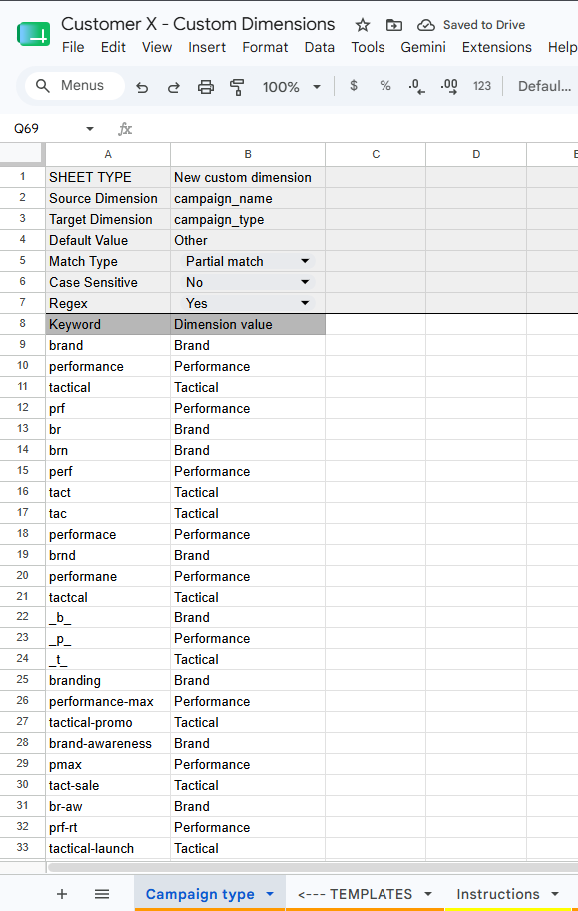
Your Sellforte CSM prepares a Google Sheet called Data Processing Customizations and sets up a dedicated tab for your new dimension. The tab is pre-configured with the source column (for example campaign_name), the target column (for example campaign_type), and a default value for rows that don't match any keyword.
You then fill in the keyword–value pairs in that tab. Each row maps one keyword to one target value. For example, the keyword "promo" maps to the value "Promo", and any campaign name containing "promo" gets tagged as a Promo campaign. Rows that match none of your keywords get the default value, typically something like "Other".
Add as many keyword–value pairs as you need. If you have overlapping patterns, list the more specific ones first — rows are checked in order.
Once you've filled in the keywords, let your CSM know. They activate the customization in the sheet and make sure it's applied the next time your data is processed.
The order of your keywords matters
Keywords are checked from top to bottom, and the first match wins. This means the order you list them in directly affects how campaigns get categorized — so it's worth thinking about, especially when keywords could overlap.
A common case: imagine you have a "Campaign role" dimension with the values Always-On, Flighted, and Promo. Now suppose some of your promo campaigns are also always-on (a continuously running promo). If "always_on" is listed above "promo", those campaigns get tagged as Always-On. If "promo" is listed first, they get tagged as Promo instead. Both can be valid — but you need to decide which interpretation is right for your business and order the keywords accordingly.
The general rule of thumb: put the more specific or higher-priority keywords first, and the broader fallback keywords below them. If you're unsure, walk through a few real campaign names with your CSM and see which value each one ends up with.
Result
The new dimension appears as a column in your dataset and becomes available throughout Sellforte. You can iterate on it freely: if you spot campaigns that ended up in the wrong category, just update the keyword–value pairs in the sheet and let your CSM know.
You can create as many custom dimensions as you need. Most customers start with one or two, then add more as new categorization needs come up.
How to maintain your mapping
Once the dimension is set up, the Google Sheet is yours to maintain. Whenever your mapping needs to change — a new campaign naming pattern appears, a category gets renamed, or you want to refine how things are grouped — just update the keyword–value pairs directly in the sheet. The changes are picked up automatically the next time your data is processed.