Skip to content
  • There are no suggestions because the search field is empty.

Amazon Selling Partner

You can connect Amazon Selling Partner or Vendor Partner accounts by using the Amazon Selling Partner connector.


Prerequisites for Amazon Seller Central accounts

To connect Amazon Seller Central, you need the following:

Prerequisites for Amazon Vendor Central accounts

To connect Amazon Vendor Central, you need the following:


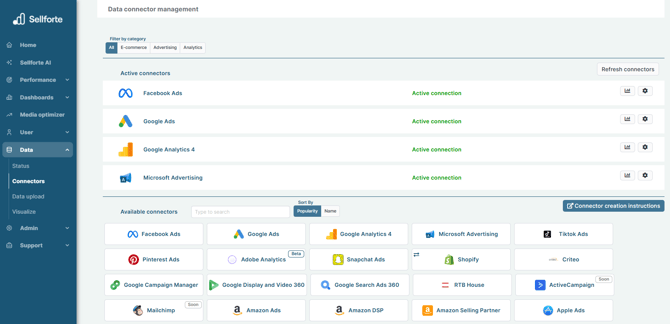
1. Log in to Sellforte and navigate to Connectors

  • In the left-side navigation pane, select Connectors under Data.
  • From the Available connectors list, click the card for the relevant connector to start the connection.

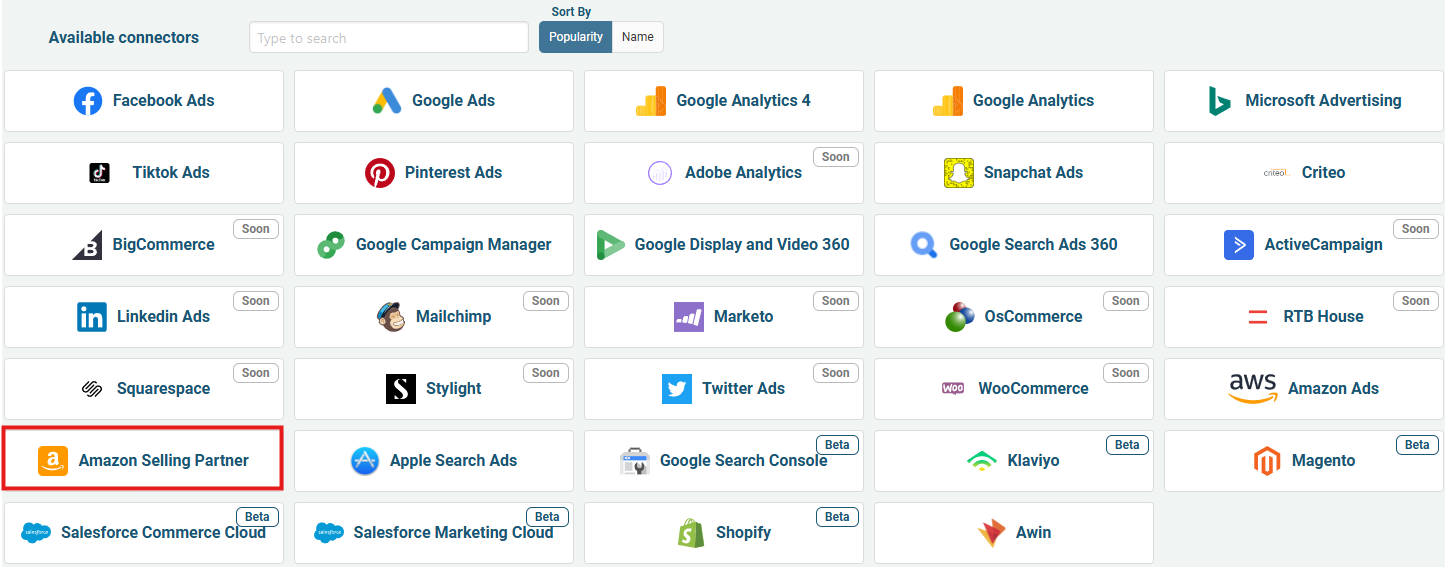
2. Choose Amazon Selling Partner

Regardless of whether you are using Amazon Seller or Vendor Central, use this connector.

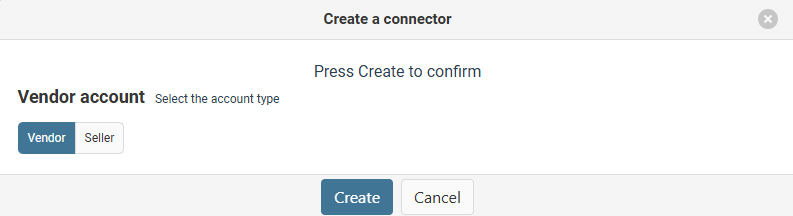
3. Choose between Amazon Selling Central and Amazon Vendor Central account

When you have chosen the correct option based on your account, click "Create".

4. Find Merchant Token (only for Seller Central accounts)

  • In your Seller central account, go to Settings and select Account Info.

  • On the navigation menu, click Business Information. Click Your Merchant Token.

  • Make a note of the Merchant Token associated with the marketplace whose data you want to sync.


5. Register private SP-API application

  • Log in to the Solution Provider Portal using your developer credentials.

  • Click Apps and select Develop App Console.

  • Click + Add new app client.

  • Enter an App name.

  • In the API Type drop-down menu, select SP API.

  • In the App Type field, choose Production.

  • In the Business entities supported section, select the checkbox for your Amazon business entity (Sellers or Vendors).

  • Based on your Amazon business entity, assign the necessary roles to your app.

    • For the Sellers business entity, select the checkbox for the following roles:

      • Finance and Accounting

      • Selling Partner Insights

      • Buyer Communication

      • Pricing

      • Inventory and Order Tracking

      • Brand Analytics

      • Amazon Fulfillment

      • Buyer Solicitation

      • Product Listing

    • For the Vendors business entity, select the checkbox for the following roles:

      • Brand Analytics

      • Amazon Fulfillment

      • Product Listing

  • In the Restricted Data Token (RDT) section, choose No, I will not delegate access to PII to another developer's application.

  • In the OAuth Login URI and OAuth Redirect URI fields, enter any placeholder URL. Sellforte does not use these URLs for the connection, so you can provide any valid dummy URL.

  • Click Save and exit.

  • In the app list, click View for your app.

  • Make a note of the Client identifier and Client secret, and then click Done. You will need them to configure the connector.


6. Generate refresh token for SP-API application

  • In the Developer Central console, click the drop-down menu for the application you registered and select Authorize.

    Click Authorize

  • In the Add Authorizations section, click Authorize app for the marketplace whose data you want to sync.

  • Make a note of the Refresh Token. You will need it to configure the connector.

Amazon displays the refresh token only once. Be sure to copy it as soon as it is generated.


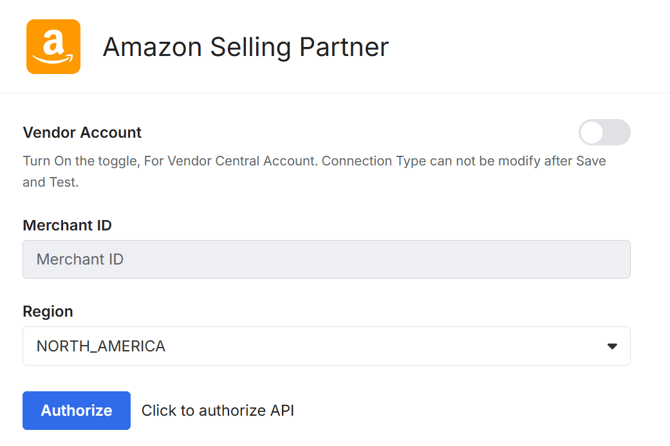
5. Add Merchant Token and choose your region

  • Go back to the Sellforte connector form.

  • If you are using Seller Central account, Enter the Merchant ID.

  • In the Region drop-down menu, select the region of the marketplace whose data you want to sync.

  • Enter the Client ID and Client Secret of the SP-API application you registered.

  • Enter the Refresh Token you generated for the SP-API application.

The Vendor Account toggle can't be changed at this point, as it is defined already in step 2.


7. Click "Save & Test" and you are forwarded back to Sellforte


You are ready! 🎉

Amazon Selling or Vendor Partner is connected and data is fetched automatically with correct MMM schema to Sellforte.